
Deleting an order in techSHIP removes it from your active workflows and automatically voids the associated carrier label. However, the system retains the historical record of these orders for your auditing needs.
This guide covers how to safely remove orders from your active queue and how to retrieve deleted records for auditing purposes.
 | For detailed conceptual information on how different statuses affect your orders, refer to Understanding Order Statuses [Information]. | |
| | ||
TABLE OF CONTENTS
Understanding Order Deletion
Before removing records from your workspace, it is important to understand which orders are eligible for deletion. You cannot delete orders that are already Manifested or Refunded.
If you attempt to delete multiple records that include a mix of eligible and ineligible statuses, the system will automatically skip the ineligible orders and only process the allowed ones.
 | You must physically destroy any printed labels associated with the deleted orders to prevent accidental shipping and billing issues. | |
| | ||
Executing the Delete Action
You can delete a single order directly from the grid or process multiple cancellations simultaneously using the Action menu.
| |
Before proceeding, ensure you are operating the right location.
|

Deleting a Single Order
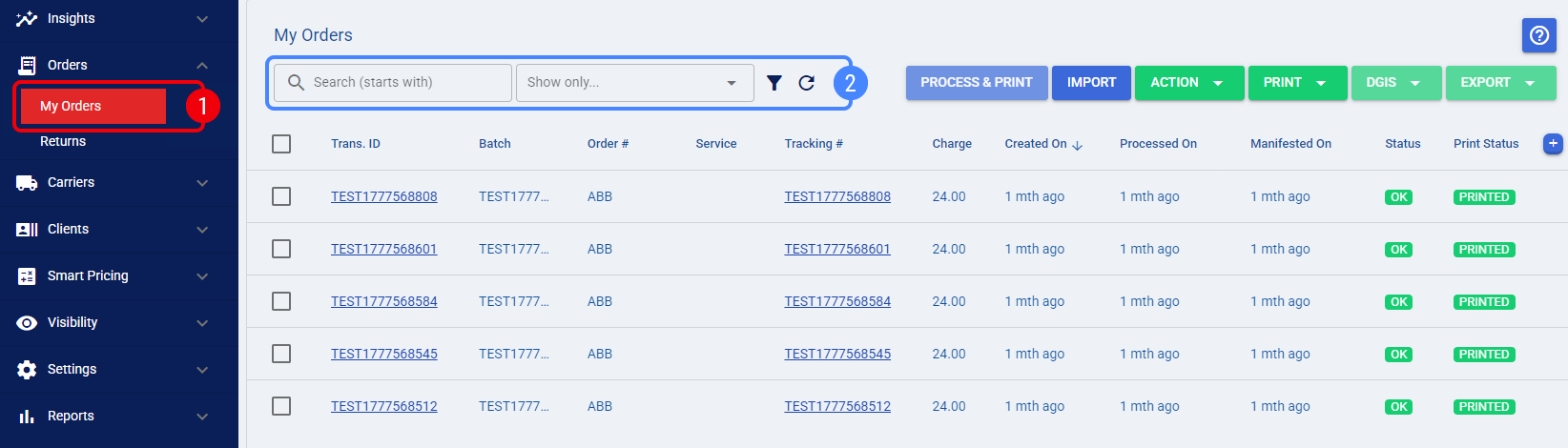
 | Navigate to the My Orders page using the main navigation menu. |
 | Use the Search bar or the Filters menu to locate the specific orders. |
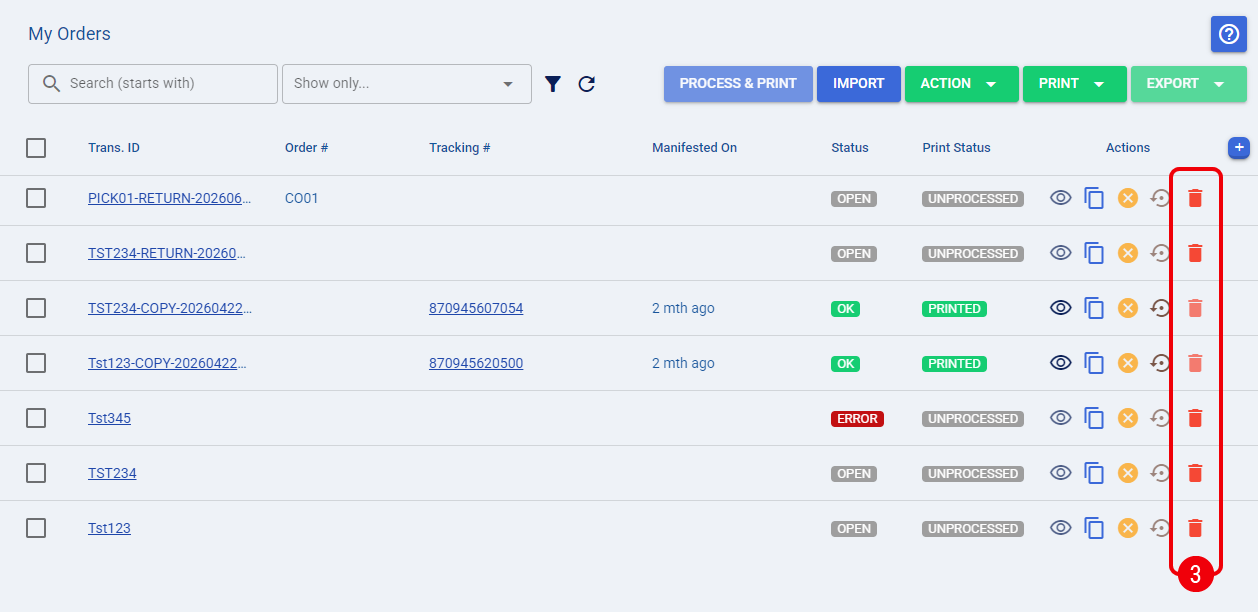
 | Click the red Trash Can icon located on the far right of the order's row. |
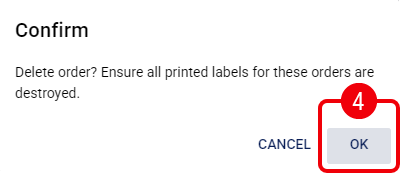
 | Click OK on the confirmation dialog to complete the action. |
The order is immediately voided and hidden from the default view.
Deleting from the Order Page
If you are already reviewing a specific order's details, you can trigger the deletion without returning to the main list.
| Navigate to the My Orders page using the main navigation menu. |
 | Use the Search bar or the Filters menu to locate the specific order. |
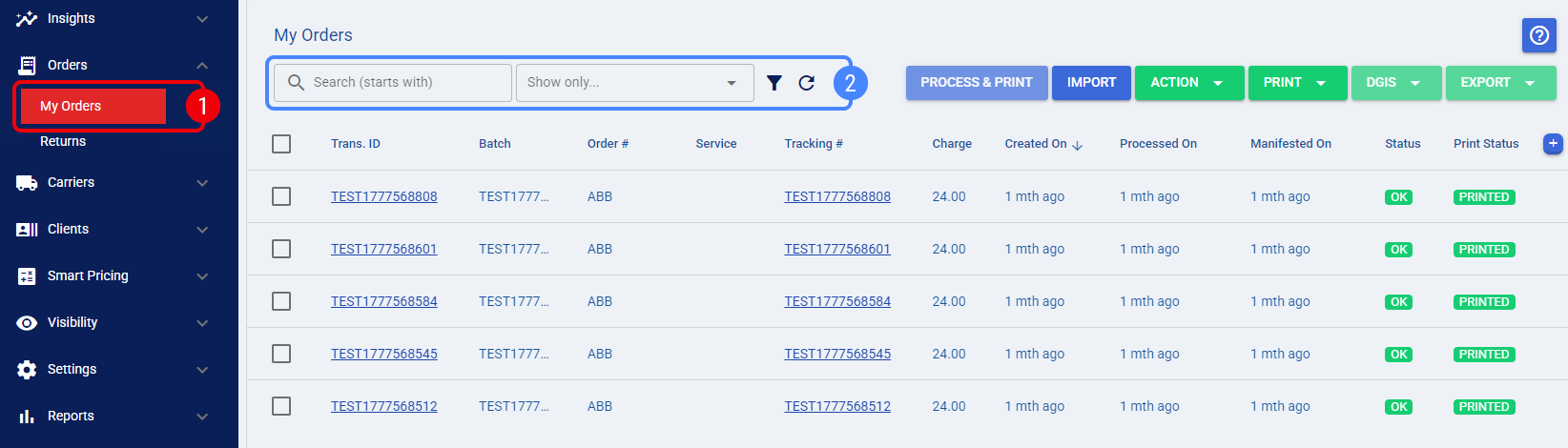
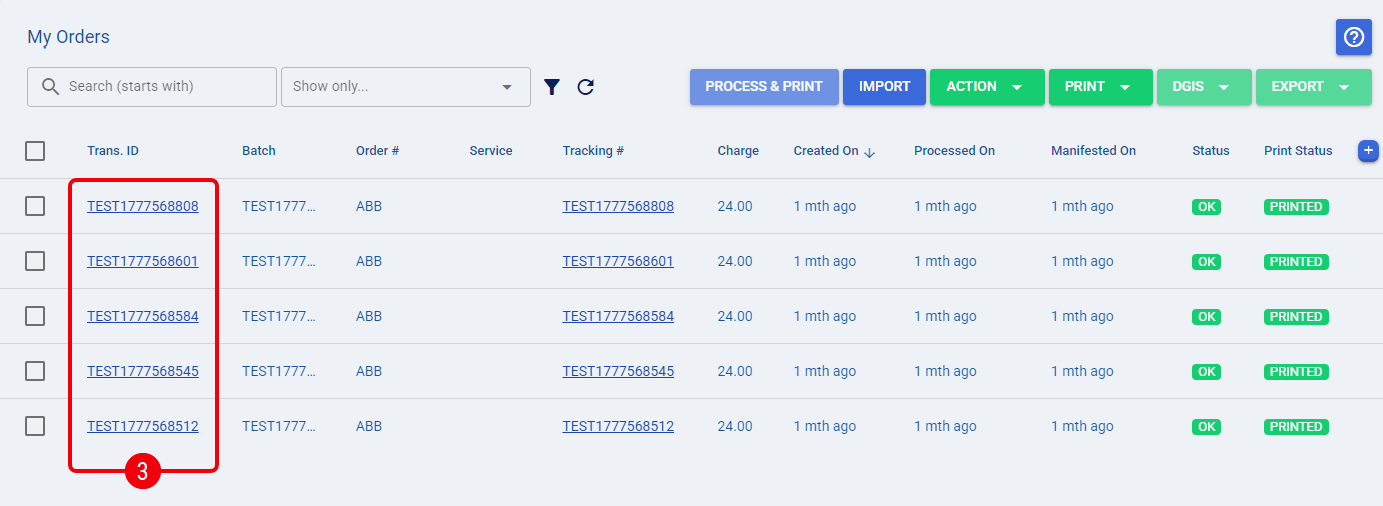
| Click on the desired order’s Trans. ID to open its edit page. |
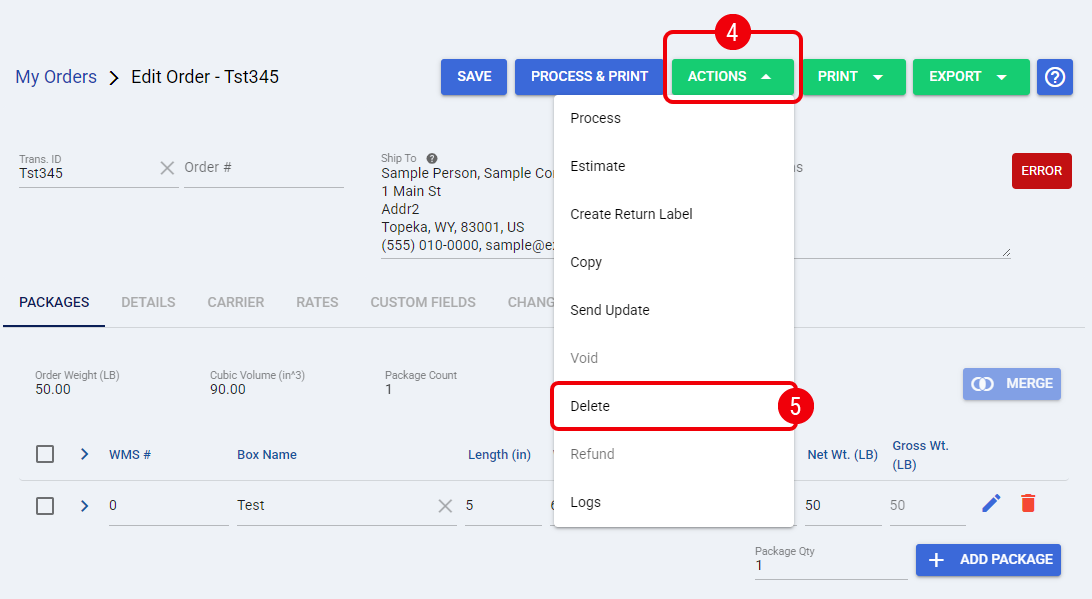
| Open the Action menu located at the top of the screen. |
 | Click Delete from the dropdown list. |
 | Click OK when the confirmation dialog appears. |
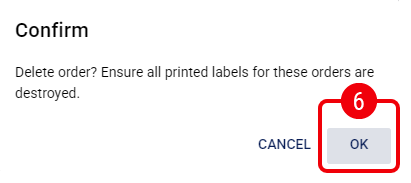
The order is immediately voided, and the system redirects you back to the My Orders list.
Deleting Orders in Bulk
Executing a Delete action directly from the grid allows you to clean up multiple records quickly.
| Navigate to the My Orders page using the main navigation menu. |
 | Use the Search bar or the Filters menu to locate the specific orders. |
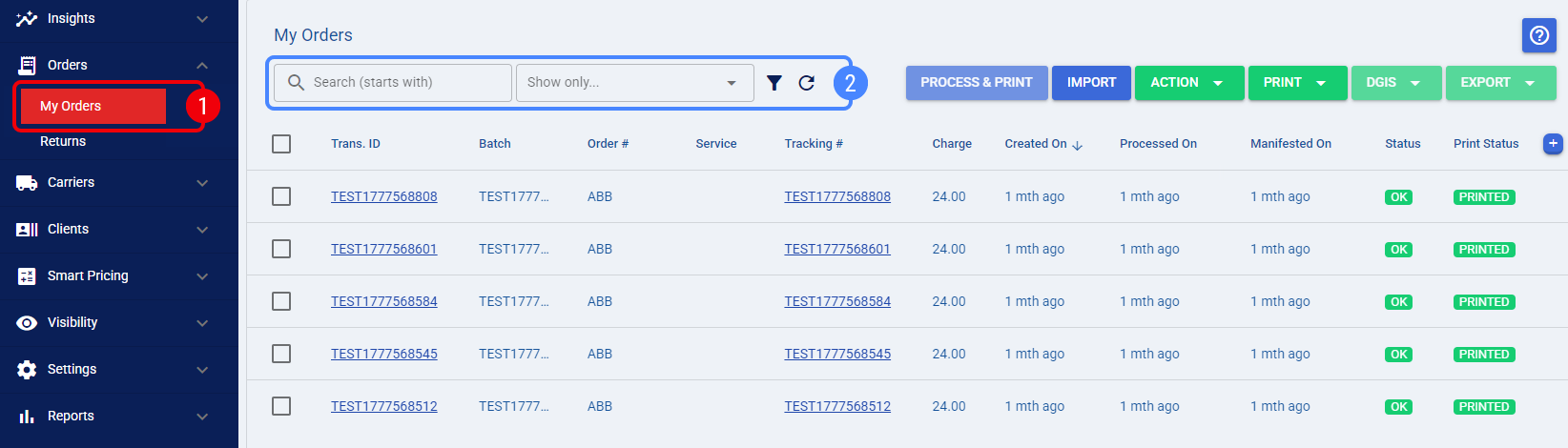
| Select the Checkboxes next to the desired orders. |
| Open the Action menu located at the top of the page. |
| Click Delete from the dropdown list. |
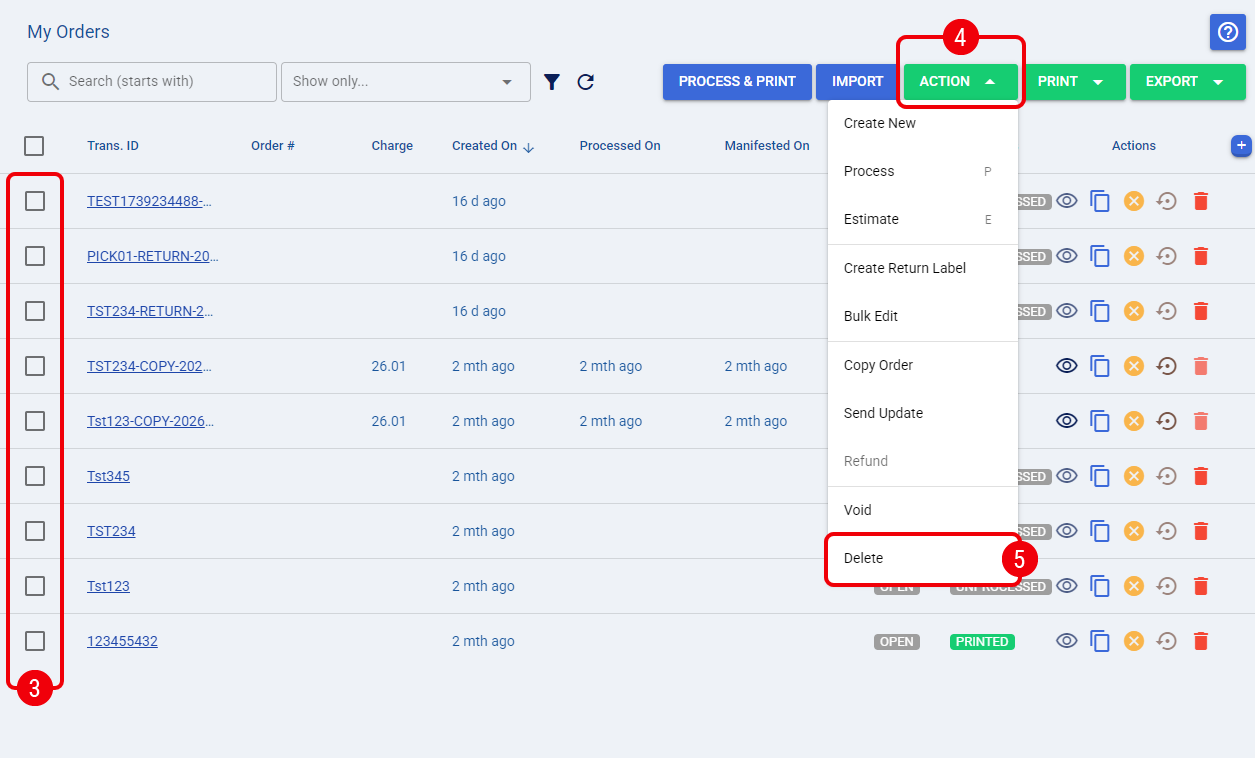
| Review the prompt and confirm the action. |
If you selected three or more records, you must type the exact number of selected orders into the provided text field.
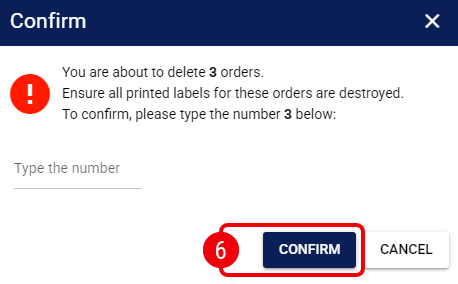
The system processes the bulk deletion, skipping any ineligible orders, and removes the successful ones from your active view.
How to View Deleted Orders
Deleted orders are hidden by default to keep your workspace clean. You can restore their visibility at any time to review historical processing activity.
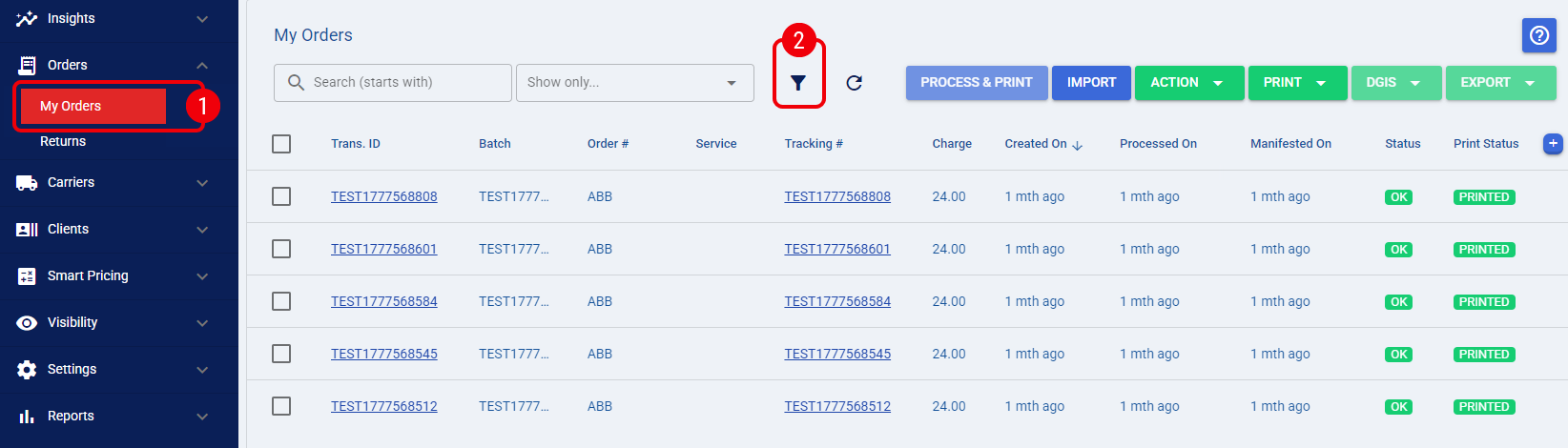
| Navigate to the My Orders page using the main navigation menu. |
 | Click the Advanced Filter icon located next to the search bar. |
| Locate the Include Deleted Orders toggle switch and set it to ON. |
| Click Apply to refresh the grid. |
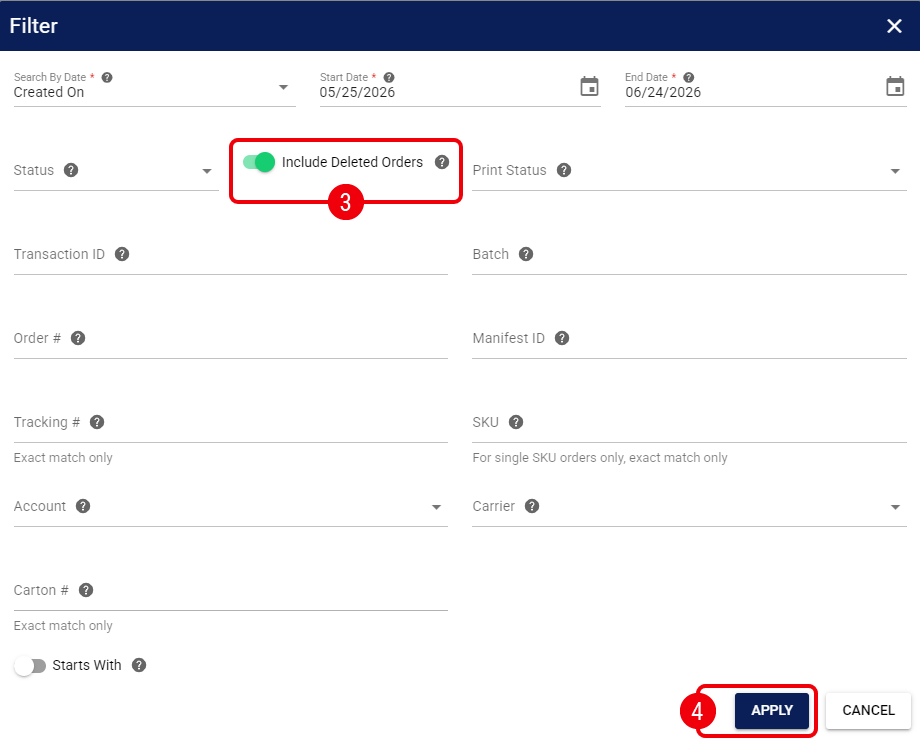
All retrieved deleted orders will now appear in your list, clearly marked with a grey Deleted status badge.