
When a carrier's integration is updated in techSHIP, a new version becomes available for setup, allowing you to seamlessly transition your operations. This guide explains the process for a safe and effective Active Migration, redirecting your setup from an old carrier connection to a new one.
There are two ways to transition to a newly released carrier version:
- Organic Migration: New accounts are set up directly with the new carrier version, while older accounts continue to run on the previous version. This allows for a gradual transition without affecting existing setups.
- Active Migration: Existing (Billing) Accounts are manually moved from an old version to the new one using the migration tool.
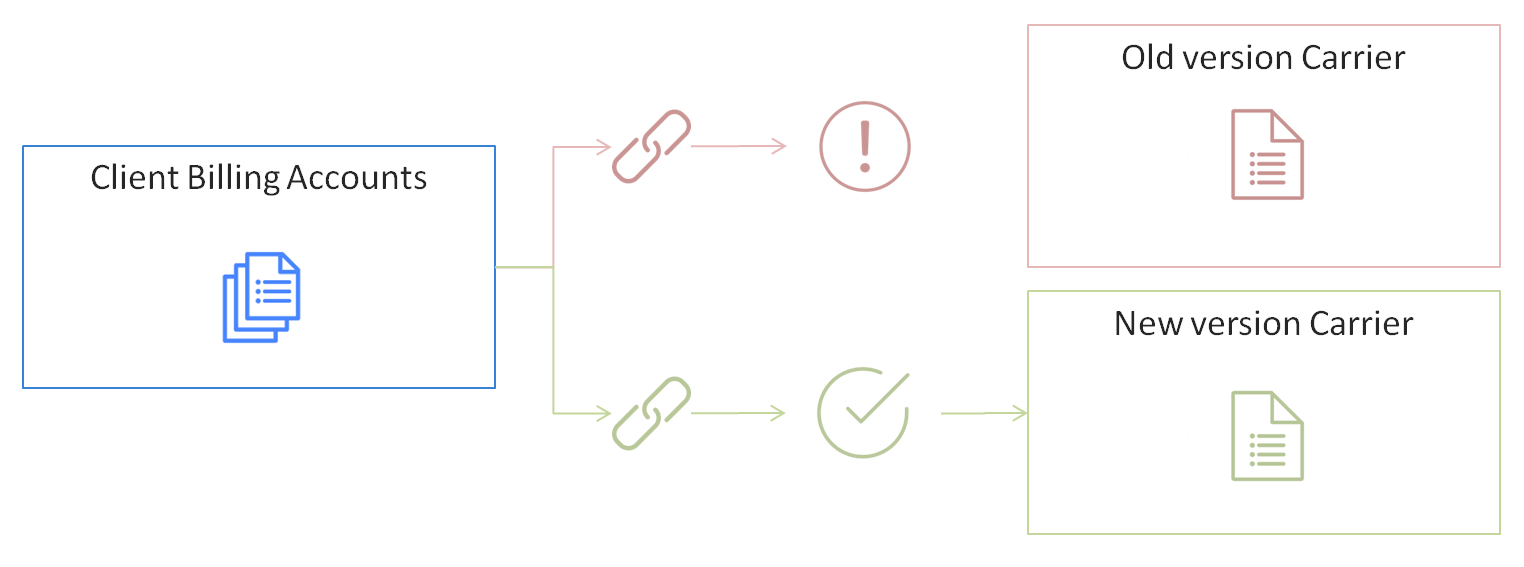
TABLE OF CONTENTS
Preparation and Testing
Before migrating your production accounts, it is essential to properly prepare and test the new carrier version to prevent any service disruptions.
 | Active migration "unplugs" the old connection. Any configuration error in the target account poses a significant downtime risk, as it will halt label production for the migrated clients. | |
| | ||
 | Confirm Availability |
Ensure that Techdinamics Support or your implementation specialist has added the new carrier version to your location.
 | Check for Recertification |
Some carriers (like FedEx) may require you to get recertified if the new version uses different API keys. Verify the carrier's specific onboarding requirements in the techSHIP Supported Carriers - Master List [Guides List].
 | Set Up the New Connection |
Add and configure the Baseline Account for the new carrier version by following the How to Add a Carrier Baseline Account [Step-by-Step Guide]. This new baseline will serve as the target for your migration.
 | Test the Connection: To validate the setup, perform the following testing sequence: |
- Create a test Client by following 10 - How to Create a Client Profile [Step-by-Step Guide].
- Assign a test account using the new Baseline Account by following How to Add a Client (Billing) Account [Step-by-Step Guide].
- Process a test shipment by following 01 - Importing Orders and Processing Them [Step-by-Step Guide].
| Processing a successful test shipment is a mandatory validation step before executing a mass production migration. This ensures that your new setup is working correctly. | |
| | ||
Active Migration Process
Once your new connection is tested and verified, follow these steps to migrate your Client (Billing) Accounts from the old version to the new one.
 | This procedure requires Carrier Administrator user permissions. Ensure your user role has the required administrative access before proceeding. | |
| | ||
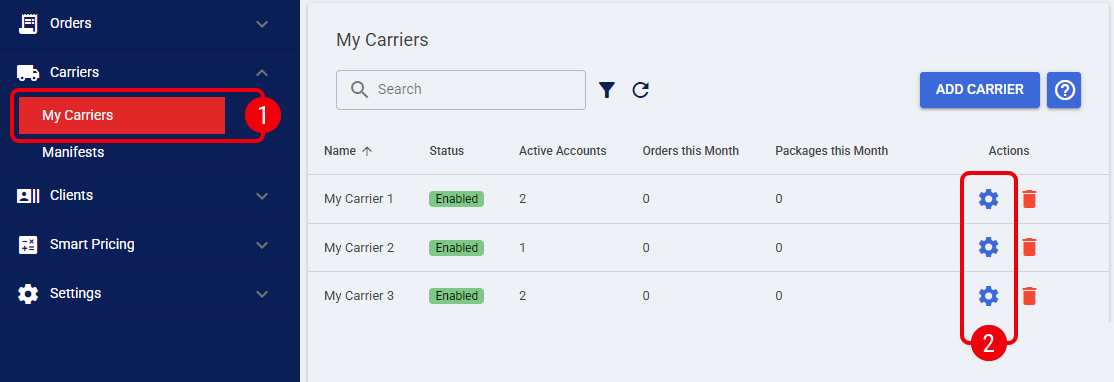
| Click My Carriers from the left menu under the Carriers category. |
| Click the Settings icon to open the legacy carrier profile from which you want to migrate linked (Billing) Accounts. |
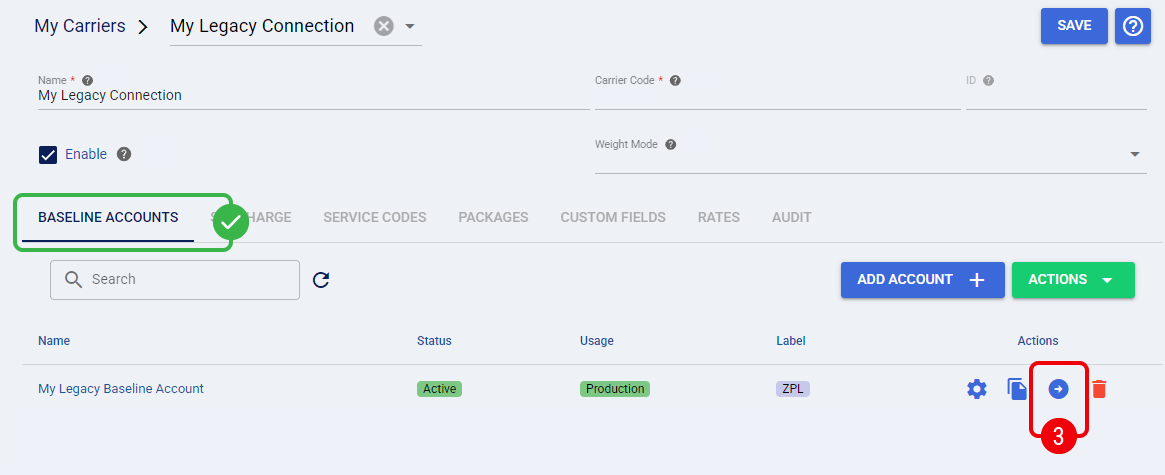
| Within the Baseline Accounts tab, click the Migrate icon on the source account you wish to migrate. |
| The source Carrier Baseline Account must be Active to perform a migration. If the Migrate icon is not visible, you must verify the account's status. If your account is inactive, refer to How to Inactivate and Activate a Carrier Baseline Account [Step-by-Step Guide] to restore access. | |
| | ||
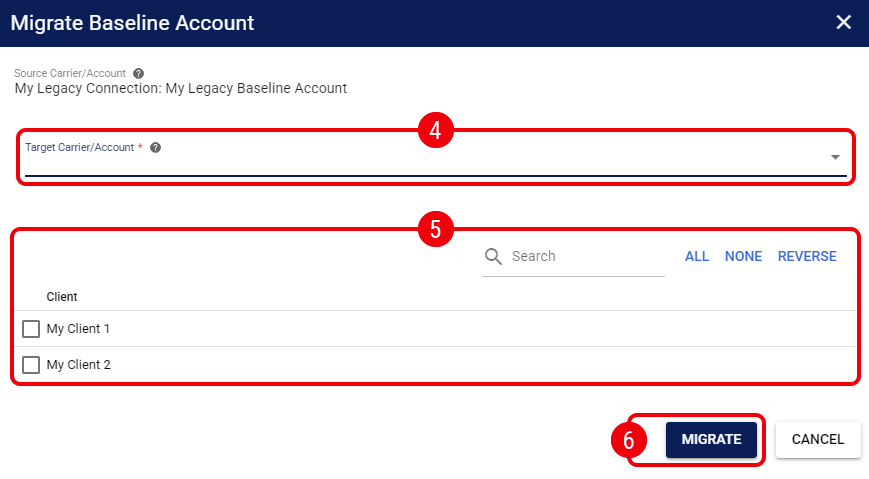
| In the Migrate Baseline Account dialog, select the newly created Baseline Account for the updated carrier version from the Target Baseline Account dropdown. |
 | Use the grid below to check the boxes for the specific (Billing) Accounts you wish to migrate. |
You can select them individually or check the box at the top of the column to select all.
 | Click Migrate to execute the transition. |
The selected (Billing) Accounts are now linked to the new carrier version.