
Monitoring shipment lifecycles is now more efficient with the integration of tracking capabilities directly into the location. Powered by the techTRACK monitoring engine, techSHIP now provides full end-to-end visibility, allowing you to search, filter, and audit shipment statuses in real-time without leaving the application.
This guide covers how to access the new Visibility module, use the enhanced filtering system, and leverage integrated tracking details to monitor your shipments.
 |
For a full overview of all new features, see: What's New in techSHIP: A Guide to the Latest Features [Information].
|
| |
This feature requires special users permissions, as detailed in: techSHIP User Permissions Structure [Information].
|
TABLE OF CONTENTS
Accessing the Tracking Page
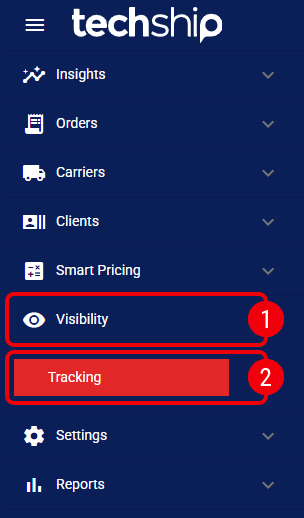
The tracking functionality is located within a dedicated section of the main menu:
 | Click Visibility from the left menu. |
 | Click Tracking. |
Searching and Filtering
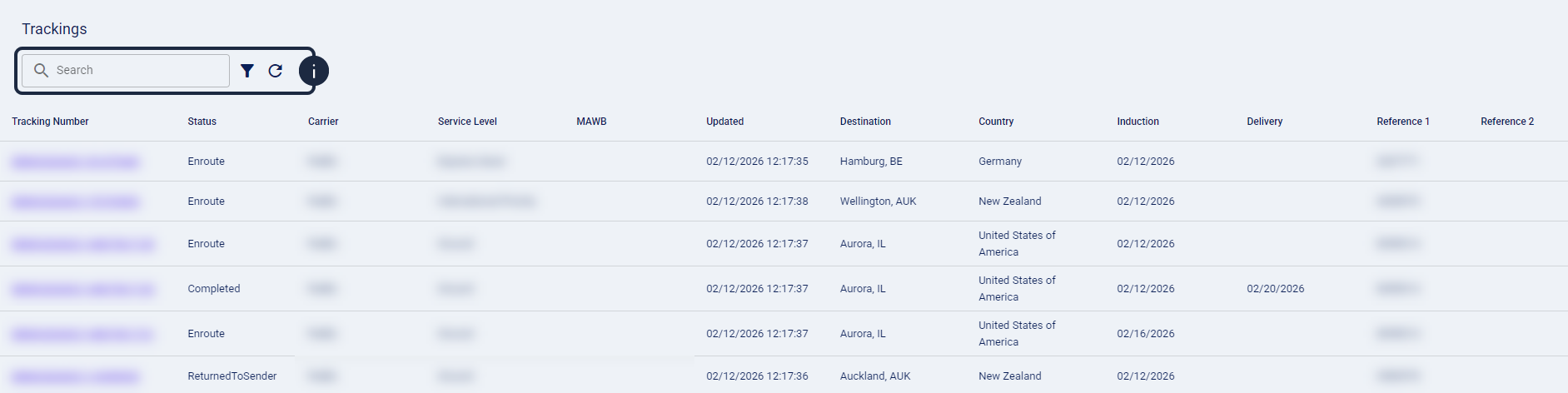
The Tracking page provides a centralized list of shipments for the current location.
| |
The list only displays tracking records associated with the specific location currently selected in the header switcher.
|

To locate specific records, you can enter a Tracking Number or Master Tracking Number in the search bar for a quick search. For more complex queries, click the filter icon to open the Advanced Filter window.
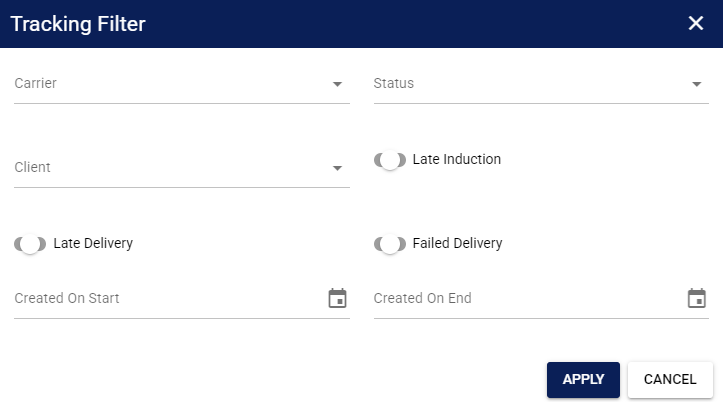
The available Advanced Filter fields have been optimized for techSHIP operations:
- Carrier: Filter results by the carrier responsible for the shipment.
- Status: Filter by the current lifecycle stage of the shipment.
- Client: Filter by the specific client associated with the shipment.
- Late Induction: Identify shipments not yet inducted by the carrier within the expected timeframe.
- Late Delivery: Filter for shipments that have exceeded their Expected Delivery Date (EDD).
- Failed Delivery: View shipments where a delivery attempt was unsuccessful.
- Created On Start / End: Define a date range based on when the records were created in the system.
All date filters are inclusive and processed in the UTC timezone.
| |
Clicking a Tracking Number with no carrier scans will show an error message. techSHIP requires at least one successful scan to display the Tracking Details page.
|
Leveraging the techTRACK Engine for Visibility
Each Tracking Details page utilizes the techTRACK engine to provide a comprehensive audit trail and advanced monitoring tools.
| |
Advanced feature availability depends on carrier support. See techTRACK & techAUDIT Supported Carriers - Master List [Guides List] for the complete list.
|
Key components:
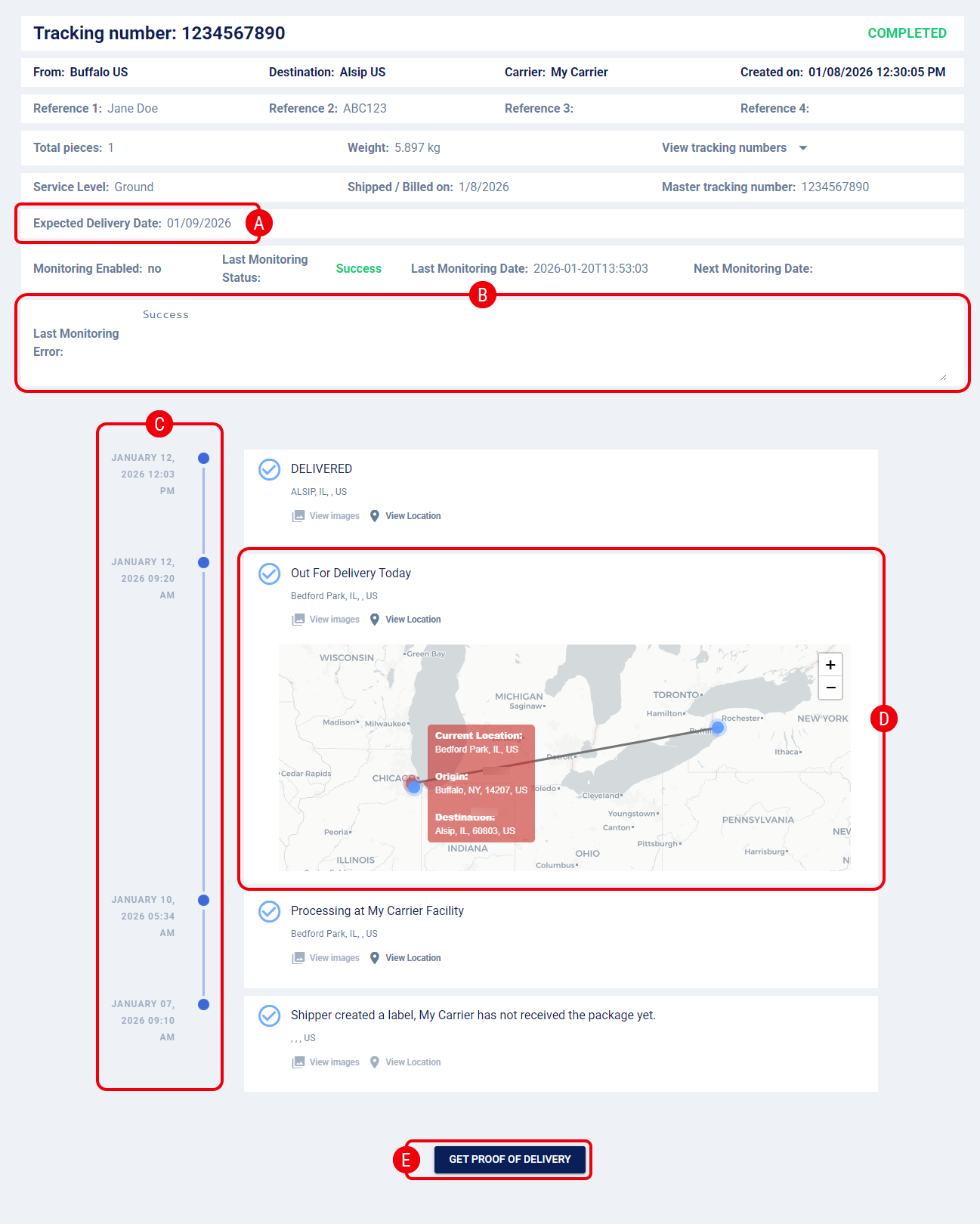
 | Expected Delivery Date (EDD): Displays the carrier-provided estimated arrival date, as detailed in How to View the Expected Delivery Date (EDD) [Step-by-Step guide]. |
 | Last Monitoring Error: Review the latest synchronization results and any exception details, as detailed in How to View Last Tracking Synchronization Error Details [Step-by-Step Guide]. |
 | Tracking Timeline: A visual history of all carrier scans and events. Events are displayed in descending chronological order, with the most recent event appearing at the top. |
 | Location Map: View the approximate location of the shipment on an interactive map, as detailed in How to View Shipment Location [Step-by-Step guide]. |
 | Get Proof of Delivery (PoD): For completed shipments, you can download available PoD files, as detailed in How to Get Proof of Delivery [Step-by-Step guide]. |
| |
Since techSHIP integrates the techTRACK interface as-is, the layouts, components, and tracking logic are identical across both platforms.
|