
This guide explains how to add and configure a Mainfreight V2 Baseline Account.
A Baseline Carrier Account defines the default configuration required for the platform to communicate with the carrier and generate shipping labels. This setup is required before adding Client (Billing) Accounts and enabling shipping operations for this carrier.
 |
For a complete overview of supported carriers and related setup guides, refer to techSHIP supported Carriers - Master List [Guides List].
|
TABLE OF CONTENTS
Prerequisites
Before adding the Baseline Account, ensure the following prerequisites are completed: [ADD LINK HERE] Mainfreight V2 Onboarding Requirements and Configuration Guides [Information].
| |
Confirm you are operating in the correct Location:
|

Then, follow the configuration steps as described in How to Add a Carrier Baseline Account [Step-by-Step guide] using the values provided below.
Carrier-Specific Instructions
Carrier Tab
The Carrier tab contains the Baseline configuration used to identify the Carrier account and define its operational behavior. Fields in this view are grouped visually to distinguish mandatory (red-highlighted items) and optional (blue-highlighted items) carrier-specific settings.
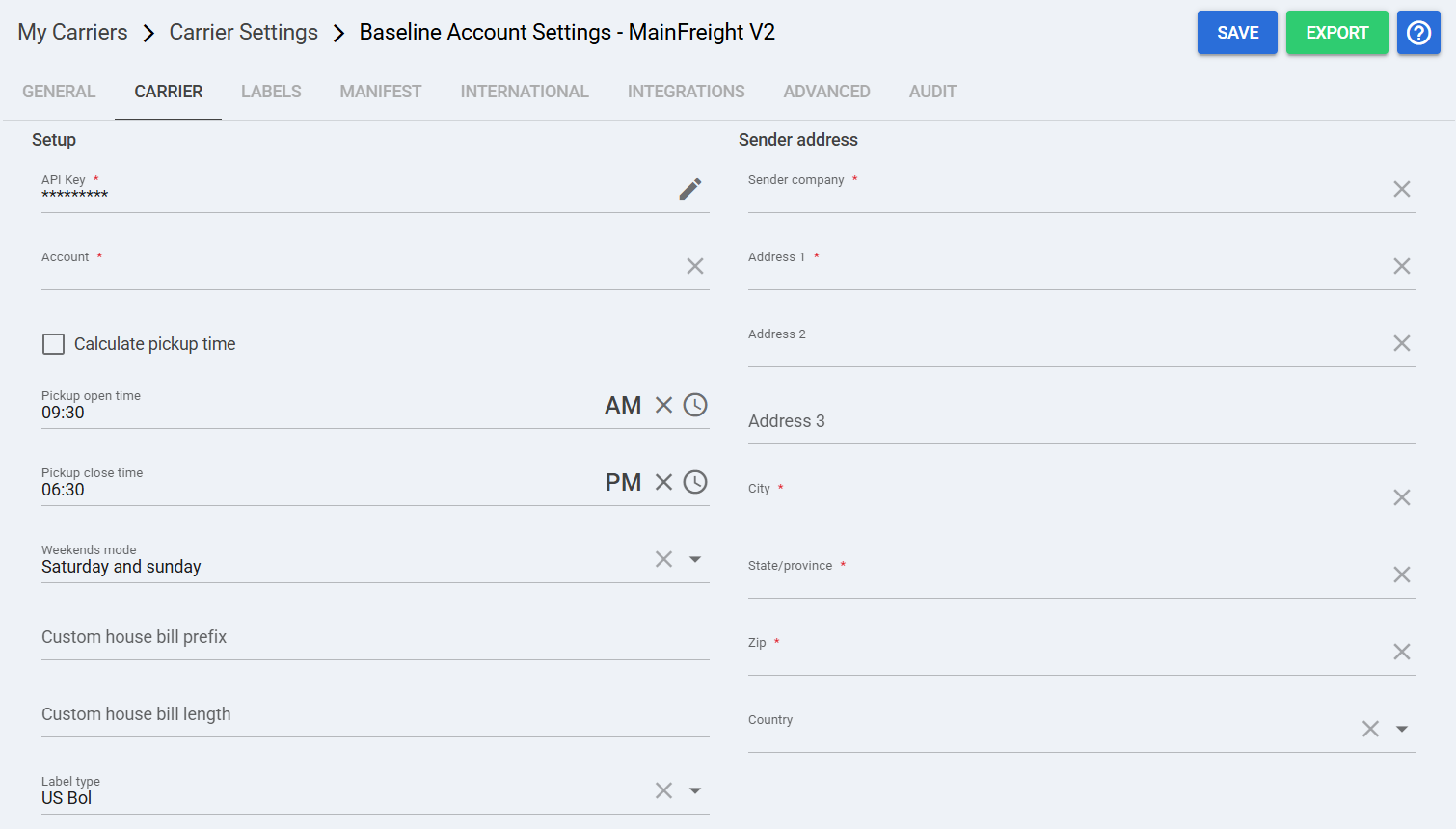
 | API Key: {Enter the API Key provided by Mainfreight for this integration. |
 | Account: Enter the Mainfreight account identifier used for rating/booking/label or BOL requests. |
 | Sender company: Enter the ship-from company name used on documents and in shipment requests. |
 | Sender address: Configure the ship-from address used for rating/booking/document generation (Address 1, City, State/Province, Zip, Country required; Address 2/3 optional). |
 | Calculate pickup time: Enable when pickup time should be calculated/controlled using the pickup time window fields. |
 | Pickup open time: Define the earliest pickup time when required by the carrier workflow. |
 | Pickup close time: Define the latest pickup time when required by the carrier workflow. |
 | Weekends mode: Configure weekend handling when required by client/carrier scheduling rules. |
 | Custom house bill prefix: Set a custom prefix for house bill numbers when required. |
 | Custom house bill length: Set the expected house bill number length when using a custom prefix/format. |
 | Label type: Select the document type to generate: US Bol or US Label. |
Labels Tab & Capabilities
The following table summarizes BOL and label support specific to this carrier:
| ITEM | SUPPORTED | BEHAVIOR |
| Label |  | Select Label type as one of the following values: [US Bol, US Label]. |
| BOL |  | Generates a BOL document when Label type is set to US Bol. |
 | To enable Baseline Account settings, and before continuing, press Save. |
Finalizing the Setup
Once the Baseline Account has been created, validated, and saved, proceed to configure the Client (Billing) Account: How to Add a Mainfreight V2 Client (Billing) Account [Guide].