
This guide explains how to configure GLS Germany-specific settings in the Carrier tab of an Order.
A Carrier Tab configuration defines transaction-level behavior that applies only to the selected Order. These settings are enforced by the carrier and may vary depending on the selected service, shipment type, and accessorial configuration.
 |
For a complete overview of supported carriers and related setup guides, refer to techSHIP supported Carriers - Master List [Guides List].
|
TABLE OF CONTENTS
Prerequisites
Before configuring the Order's Carrier tab, ensure that:
A GLS Germany Client (Billing) Account has been created. See: How to Add a GLS Germany Client (Billing) Account [Guide].
Follow the configuration steps as described in: 05 - How to edit an order’s information - [Step-by-Step guide] using the values provided below.
Carrier-Specific Options
The Carrier tab contains the GLS Germany-specific configuration used to define operational behavior for this Order. Fields in this view are grouped visually to distinguish mandatory (red-highlighted items) and optional (blue-highlighted items) carrier-specific settings.
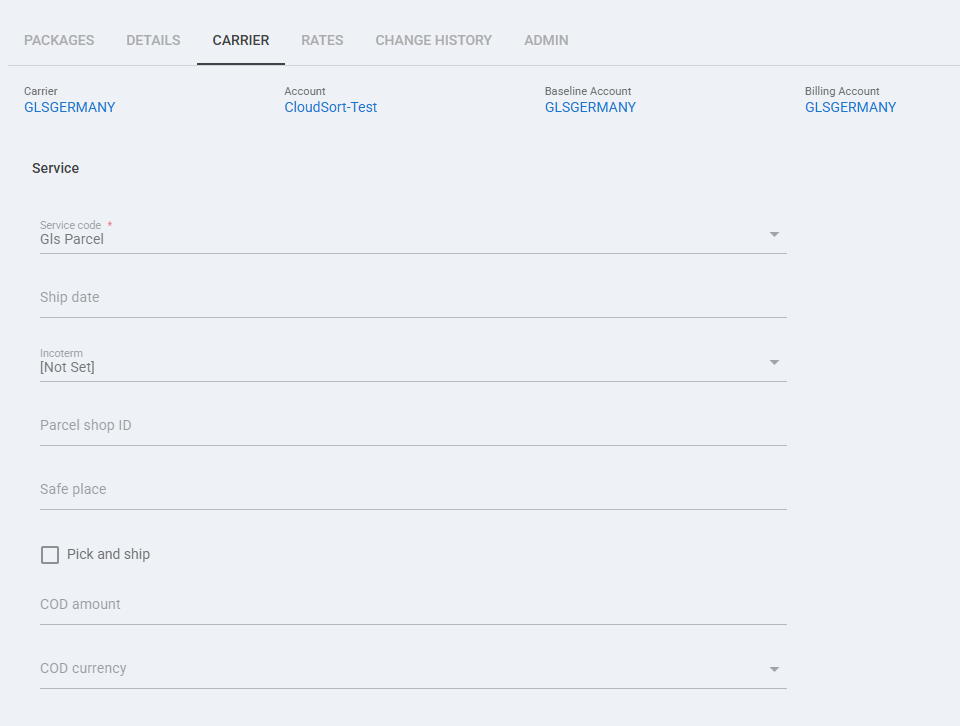
 | Service code: Select the GLS Germany service for this Order. |
 | Ship date: Enter or select the shipment date for this Order. |
 | Incoterm: Select the Incoterm for this Order when applicable. |
 | Parcel shop ID: Enter the parcel shop identifier when the shipment is delivered to a parcel shop. |
 | Safe place: Enter the safe place instructions when applicable. |
 | Pick and ship: Enable this option when the Order must use the pick and ship option. |
 | COD amount: Enter the COD amount when COD is configured for the shipment. |
 | COD currency: Select the currency used for COD when COD is configured for the shipment. |
 | To enable carrier-specific settings —and before continuing—, press Save. |
Next Steps
You can now ship this Order through GLS Germany.