
Processing high-frequency orders in techSHIP is now faster with the introduction of keyboard shortcuts. This feature allows warehouse operators to trigger the most common actions directly from the keyboard, minimizing reliance on the mouse and increasing overall operational speed.
This guide covers how to use the keyboard shortcuts available on the My Orders page and their general constraints.
TABLE OF CONTENTS
Available Keyboard Shortcuts
The following keyboard shortcuts can be used to execute core actions directly from the My Orders grid.
 | To use these shortcuts, you must be on the My Orders page. To access it, click My Orders from the left menu under the Orders section.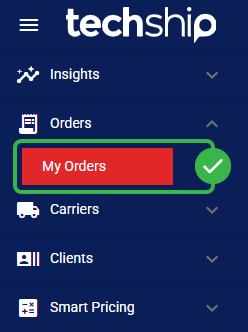 | |
| | ||
ACTION | SHORTCUT KEY | DESCRIPTION |
Process | P | Processes the selected orders, verifying that there are no errors and generating the tracking numbers for each box. |
Process & Print | Shift + P | Processes and immediately prints labels for the selected orders. |
Estimate | E | Calculates shipping rates for the selected orders without processing them. |
Import | I | Opens the Import dialog to fetch orders using your automatically remembered default criteria. |
Printing Options | O | Opens the Printing Options dialog to configure the sorting sequence for your session in the current browser. |
Print All | Shift + A | Triggers the print action for all selected orders. |
Show Shortcuts | ? (or Shift + /) | Opens the Keyboard Shortcuts dialog. Pressing ESC will close it. |
Viewing Shortcuts in the System
To help you learn and discover these combinations, techSHIP displays shortcut hints directly within the user interface.
- Help Dialog: Pressing the
?key on your keyboard will instantly open the Keyboard Shortcuts dialog, displaying a complete list of active shortcuts for the current page.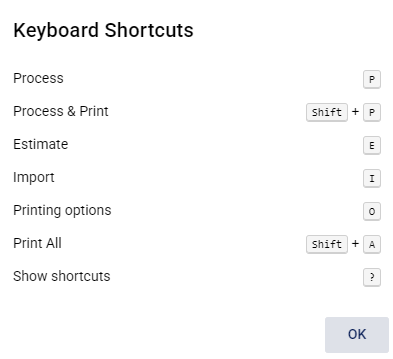
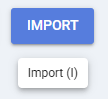
- Button Tooltips: Hovering your mouse cursor over an action button (such as Process & Print or Import) will display a Tooltip that includes the associated shortcut key.
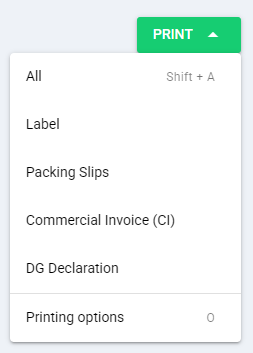
- Menu Items: When you open the Action drop-down menu, the corresponding shortcut key is displayed on the right side of each available action.
Usage Constraints and Considerations
To ensure a smooth workflow and prevent accidental actions, these shortcuts follow specific behavioral rules.
 | Shortcuts that apply to specific orders, such as Process or Estimate, will not execute unless at least one order Checkbox is actively selected in the grid. If no orders are selected, the keystroke will be ignored. | |
| | ||
| Keyboard shortcuts are automatically suppressed whenever your cursor is focused on a text input, Search field, text area, or drop-down menu. This ensures that typing text into the techSHIP system does not accidentally trigger a processing action. | |
| | ||