
Sometimes you need to cancel a shipment after its manifest has already been finalized. The Refund feature in techSHIP allows you to submit a label cancellation request directly to the carrier for these manifested orders, helping you recover shipping costs seamlessly.
This guide covers the operational behavior of the refund feature and provides step-by-step instructions on how to request refunds from the system.
TABLE OF CONTENTS
Understanding the Refund Process
The Refund action is specifically designed for shipments that have completed the manifesting process. Understanding how this feature interacts with your Orders and Manifests ensures accurate operational tracking and cost recovery.
While Void is used to cancel labels before the carrier acknowledges them (when the batch is Open), Refund is used to request a cancellation for a label that has already been manifested (when the batch is Closed).
 | The availability of this feature depends entirely on whether the assigned Carrier supports post-manifest cancellation requests. For more information, refer to techSHIP supported Carriers - Master List [Guides List]. | |
| | ||
When you trigger a Refund request, techSHIP executes the following workflow:
- Order Status: The order status changes to Cancelling. That indicates the refund is processing in the background.
- Tracking Number: If the carrier successfully processes the refund, the Tracking Number is cleared at the order level to prevent accidental reuse, but it is retained internally at the package level for auditing purposes.
- Manifest Preservation: The order remains associated with its original Manifest. The manifest order count will decrease, but the manifest itself retains its Closed status to preserve historical reporting.
- Final Statuses: Once the carrier responds, the order status updates to Refunded (if successful) or Refund Failed (if the carrier rejected the request). If a subsequent internal integration fails, it may show as Error.
 | You must have the Void, Refund, and Delete permission enabled in your user profile to view and use this feature For detailed conceptual information on how different statuses affect your orders, refer to Understanding Order Statuses [Information]. | |
| | ||
How to Request a Refund
You can request a Refund for a single shipment or for multiple shipments simultaneously.
Locating the Orders
Before requesting a refund, you must locate the specific Orders that require cancellation.
| |
Before proceeding, ensure you are operating the right location.
|

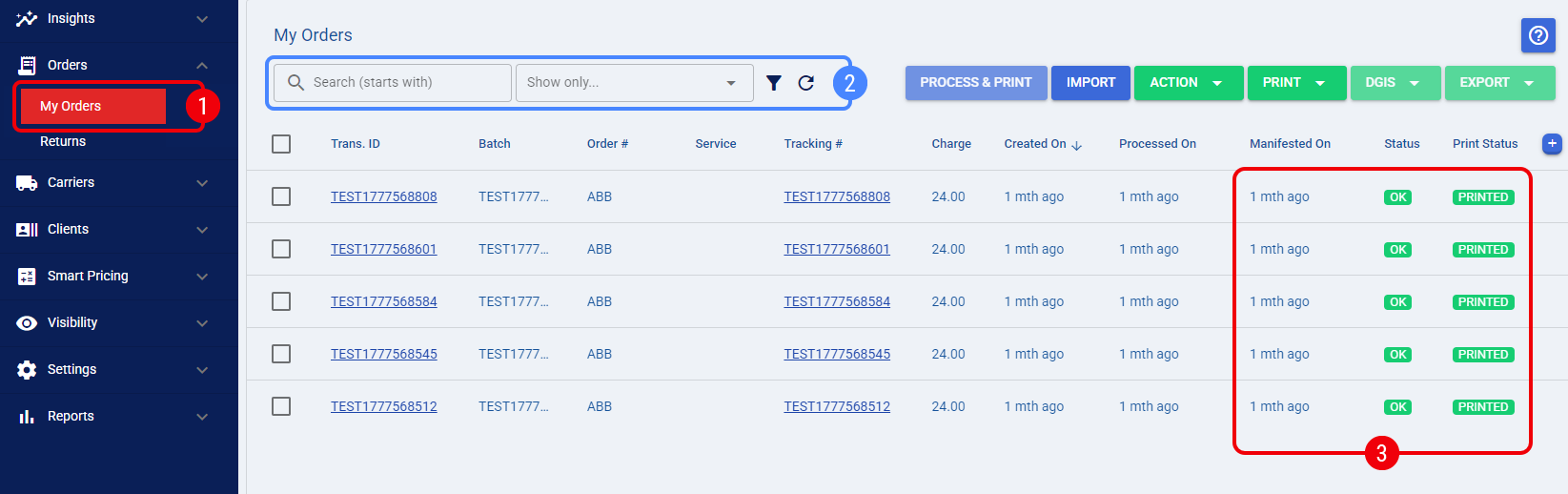
 | Navigate to the My Orders page using the main navigation menu. |
 | Use the Search bar or the Filters menu to locate the specific shipments. |
 | Verify that the order status is Manifested. |
Refunding from the My Orders Page
Executing a Refund directly from the grid allows you to process bulk cancellations quickly.
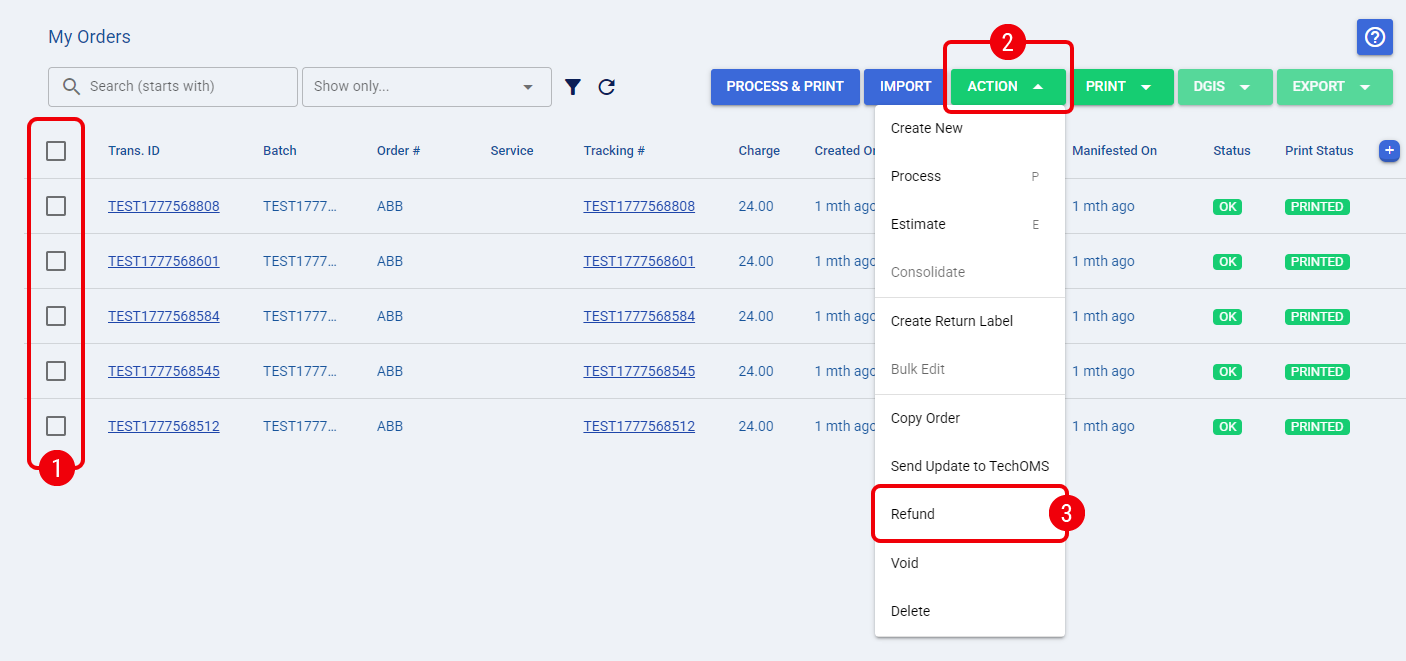
| Select the Checkboxes next to the desired Orders in the grid. |
 | Open the Action menu located at the top of the page. |
| Click Refund from the dropdown list. |
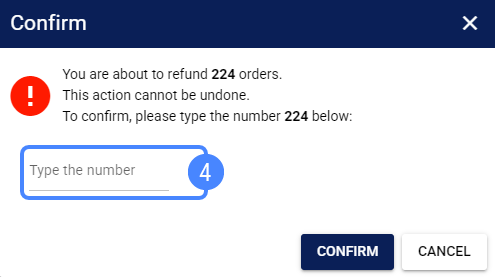
 | If you selected three or more records, a confirmation dialog will prompt you to type the exact Number of Orders you are trying to modify. |
 | Press Confirm to submit the request. |
Review the resulting on-screen message. techSHIP will confirm how many orders were successfully queued. The eligible orders will now display a Cancelling status while the request communicates with the carrier in the background.
Refunding from the Order Row
If you only need to process a single cancellation, you can execute the action directly from the grid. Locate the desired order and:
| Click the Refund icon located on the far right of the order's row. |
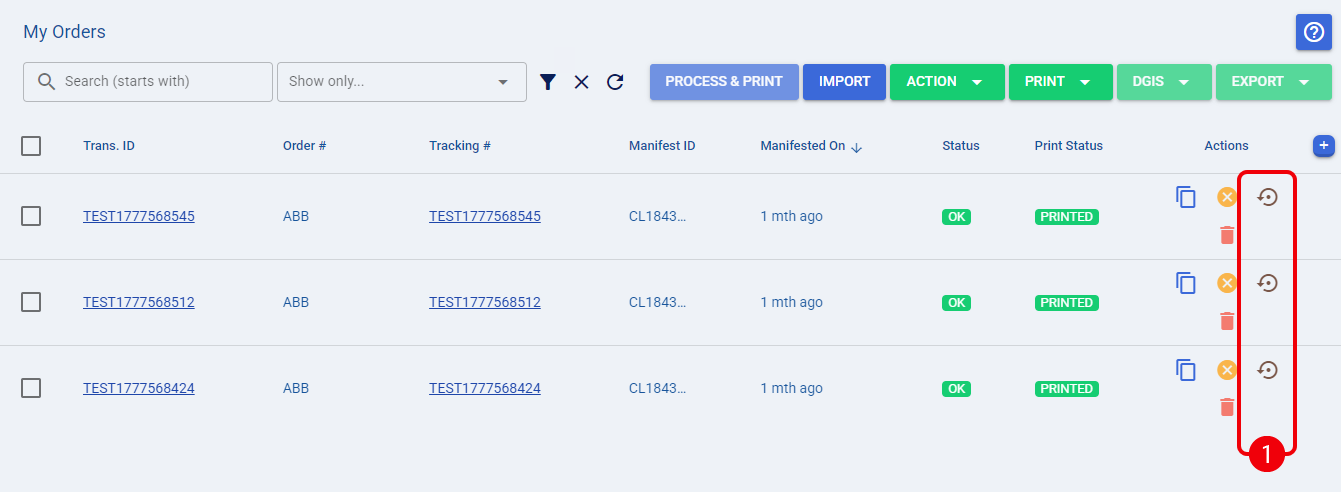
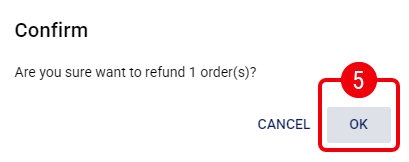
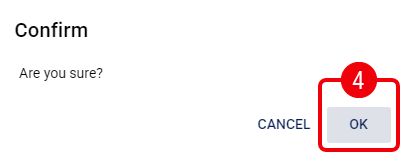
| Press OK to confirm the request. |
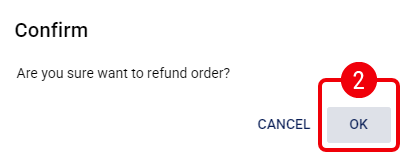
The order will display a Cancelling status while the request communicates with the carrier in the background.
Refunding from the Order Page
If you are already reviewing a specific shipment's details, you can trigger the Refund without returning to the main list.
| Click on the desired record in the My Orders grid to open the Order editing page. |
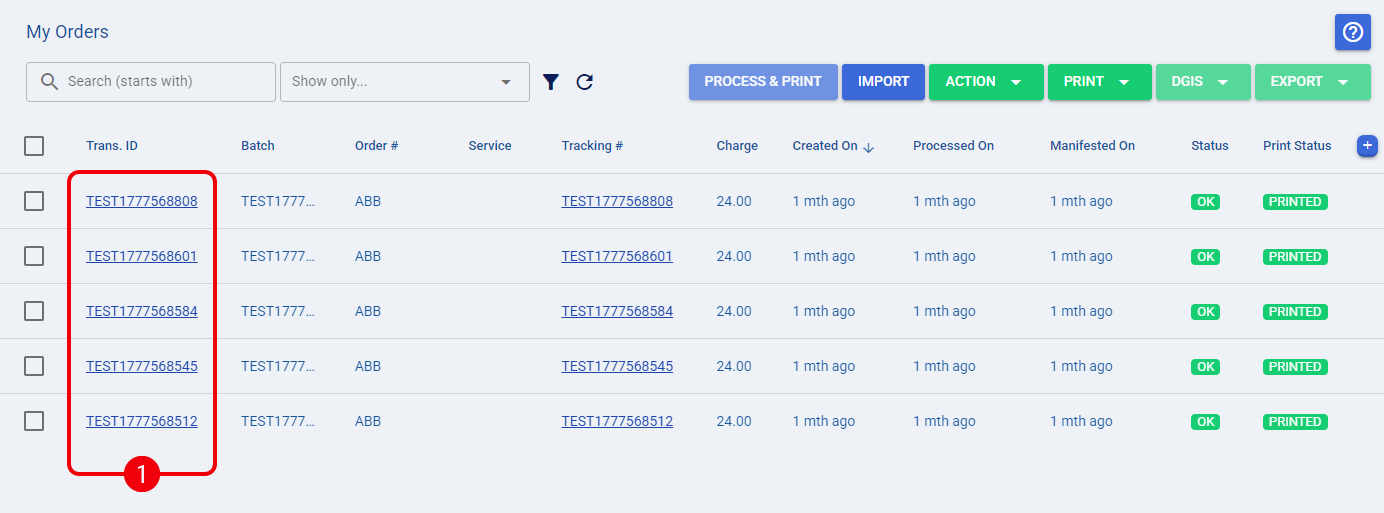
 | Open the Actions menu at the top of the screen. |
 | Click Refund. |
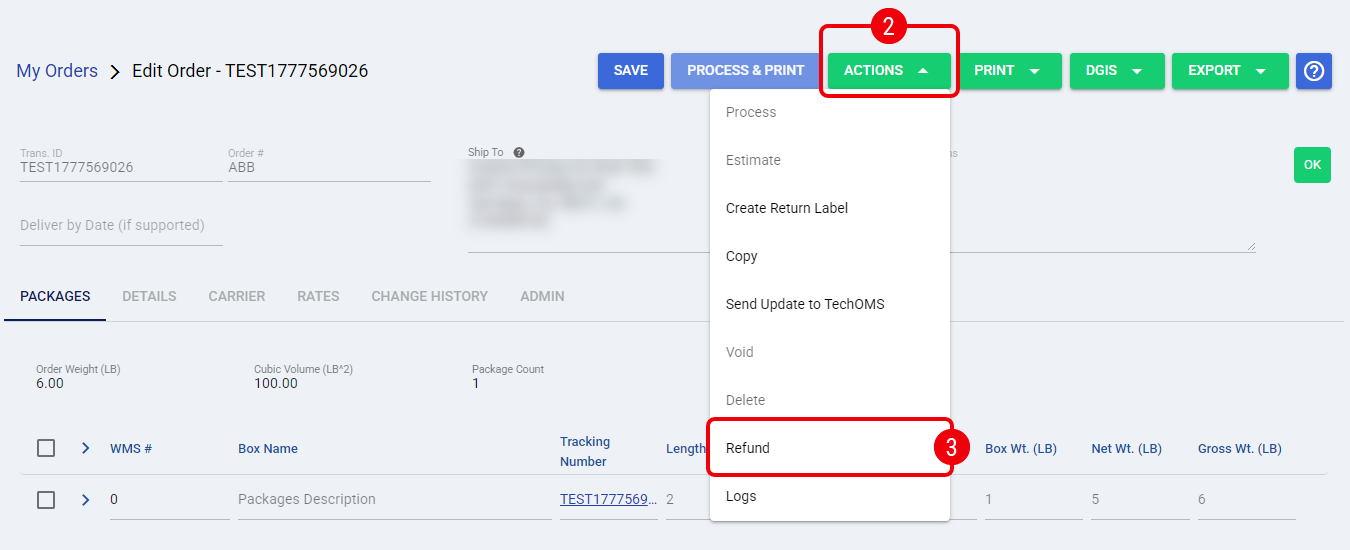
 | Press OK when the confirmation dialog appears. |
The system will queue the task, and the order will automatically transition to Refunded once the carrier confirms the cancellation.