
Troubleshooting integration issues often requires reviewing the exact data sent to and received from external connections, such as carriers or Host Systems.
This guide covers how to access the main Logs dialog and analyze specific transaction details to identify errors or monitor data payloads.
 |
Before proceeding, ensure you have the necessary permissions. Review techSHIP User Permissions Structure [Information] for more information.
|
TABLE OF CONTENTS
Accessing the Logs Dialog
| |
Before proceeding, ensure you are operating the right location.
|

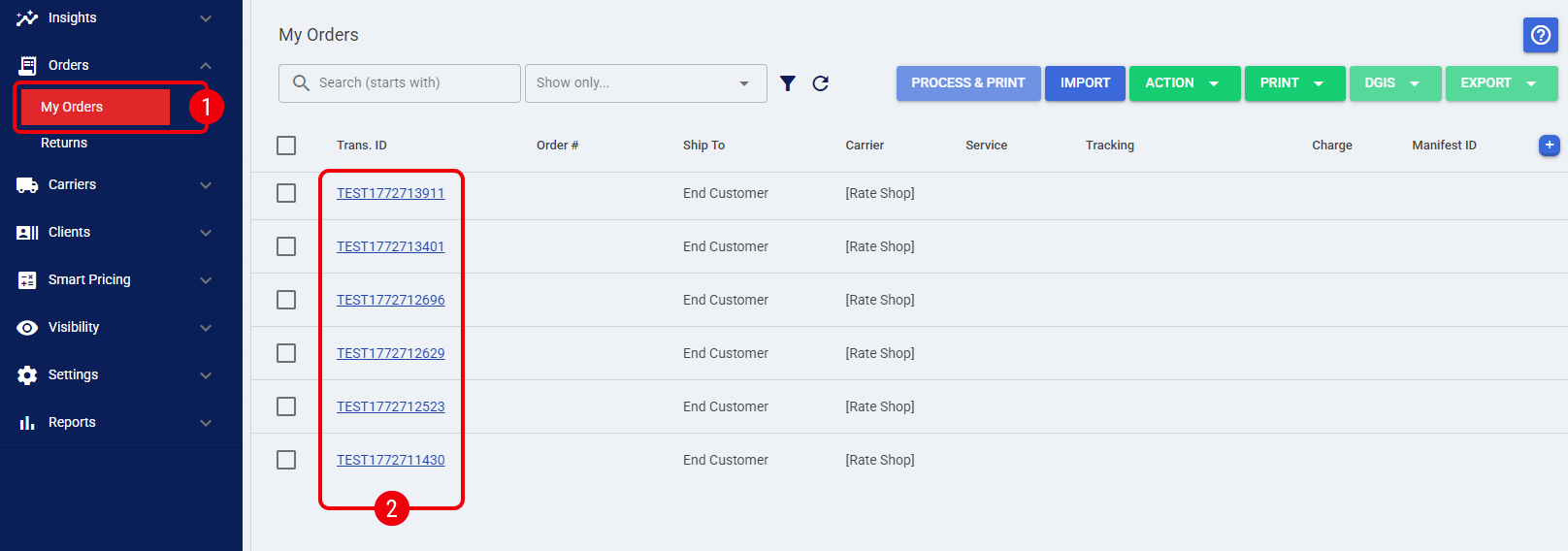
 | Click My Orders from the left menu under the Orders section. |
 | Click on the Trans. ID for the desired order. |
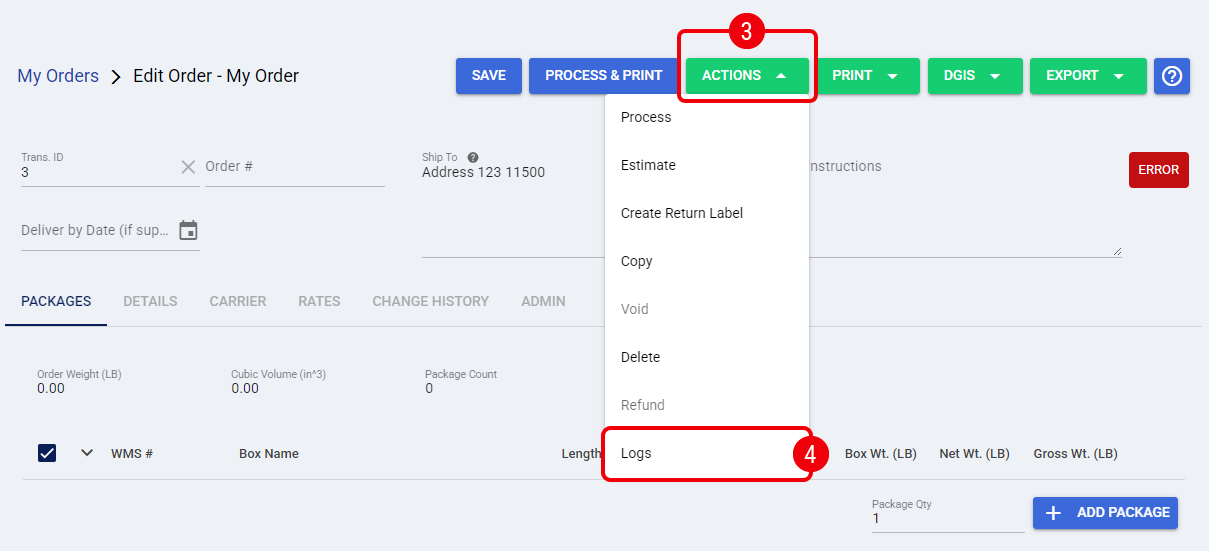
 | In the top right corner of the order edit screen, click the Actions dropdown menu. |
 | Select Logs from the list to open the dialog. |
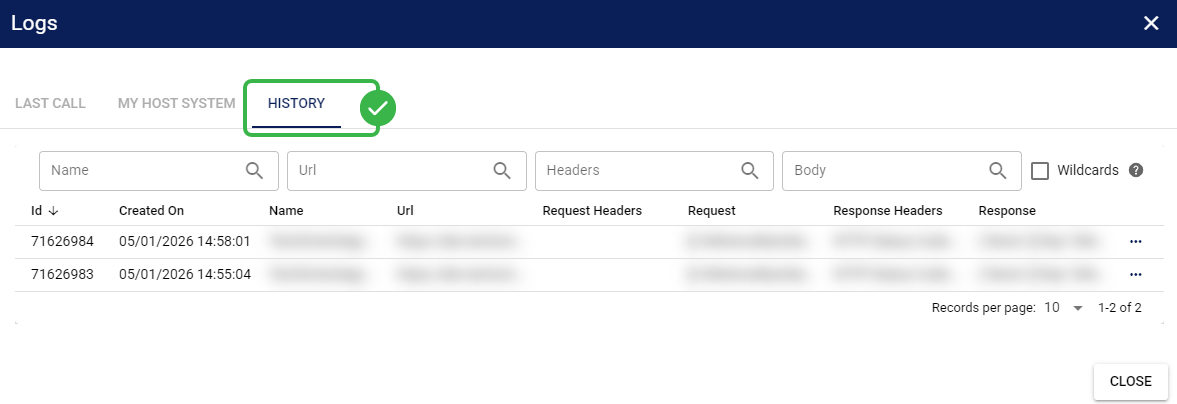
The History Tab
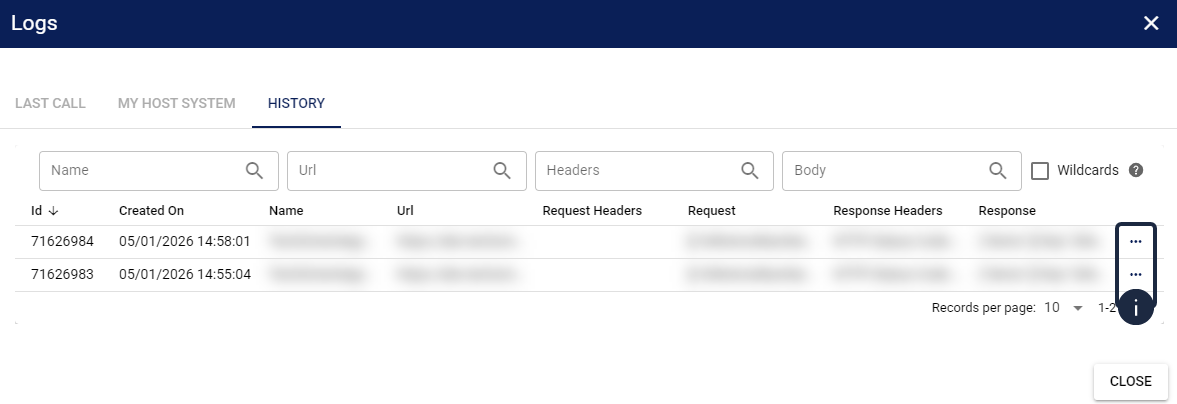
Click the History tab to view a complete grid of all communication traces associated with the order. The grid sorts records by ID in descending order by default, ensuring the newest traces always appear at the top.
You can review high-level details directly from the columns, including the Created On timestamp, the integration Name, the destination URL, and truncated snippets of the Request and Response payloads.
Filtering Trace Records
Use the dedicated search fields located above the grid to narrow down the visible records. You can filter the list by typing directly into the Name, URL, Headers, and Body fields. These fields support partial matches, allowing you to find records even if you only type a fragment of a word.
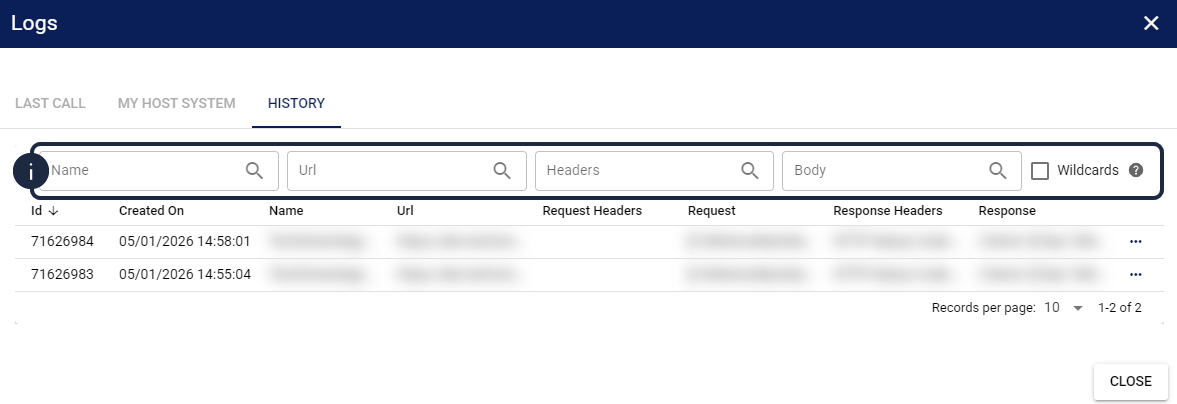
If you enter text into multiple fields at the same time, the grid will filter down to show only the records that match all of your entered criteria together.
| Check the Wildcards box to enable advanced pattern matching. This allows you to use asterisks to find partial matches scattered across multi-line payloads (for example, searching *error* in the Body field). | |
| | ||
The Trace Record Dialog
To view the complete, untruncated data of a specific communication event, click the More Options icon at the end of a row to open the Trace Record dialog.
This dialog provides an in-depth look at the transaction, divided into the following key areas:
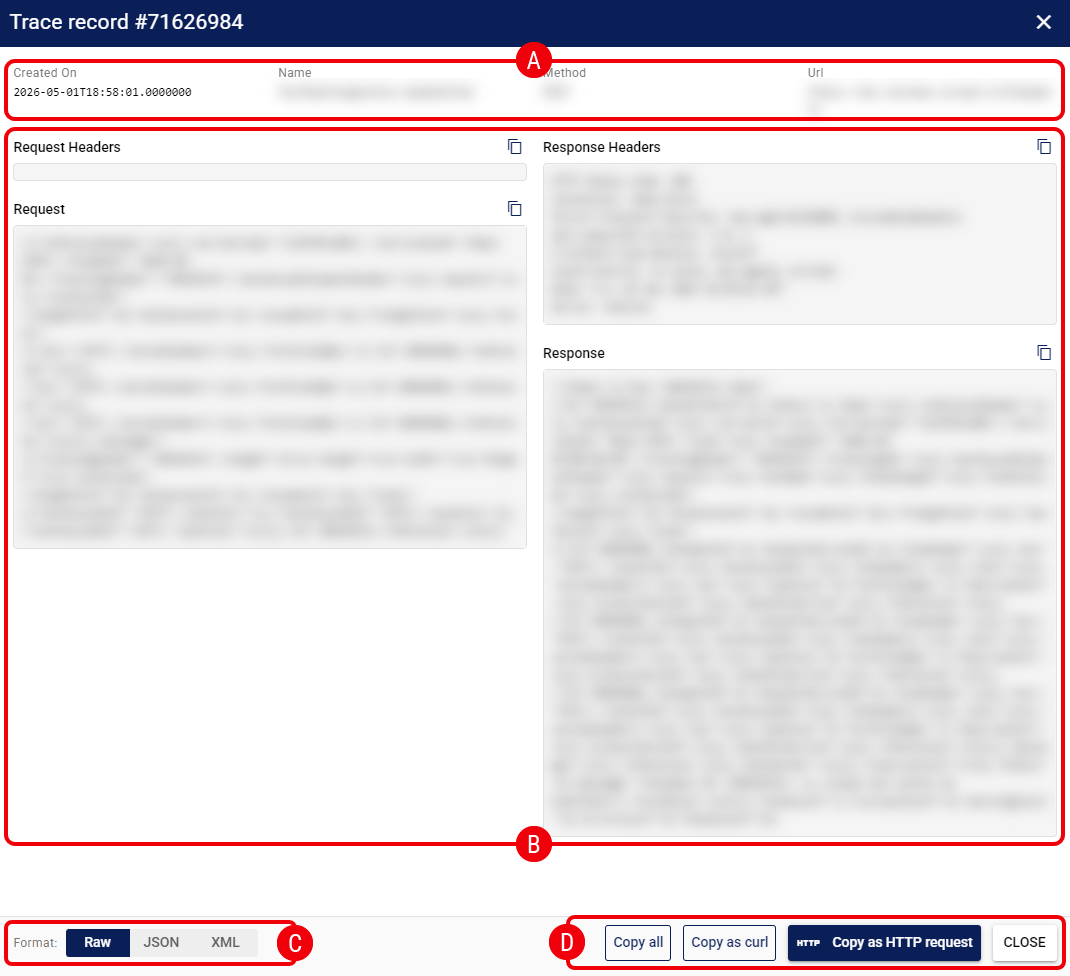
 | Context Header: Displays the high-level details of the call, including the Created On date, the integration Name, the HTTP Method, and the destination URL. |
 | Payload Comparison: Provides a side-by-side view displaying the Request Headers next to the Response Headers, and the main Request body next to the Response body. Click the Copy icon located at the top right of any individual section to copy that specific block of text to your clipboard. |
 | Formatting Controls: Use the Format toggles at the bottom of the dialog to switch between Raw, JSON, and XML views, which automatically pretty-print the payloads for easier reading. |
 | Export Actions: Click Copy all to copy the entire record, or use Copy as curl and Copy as HTTP request to format the payload specifically for external testing tools. |