
Managing your reverse logistics efficiently means keeping your active data clean. techSHIP allows you to void unused return labels in bulk, helping you prevent unnecessary billing charges from your carriers.
This guide covers how to select, validate, and safely void multiple return labels directly from the centralized grid.
TABLE OF CONTENTS
Understanding Void Eligibility
Before attempting to cancel a reverse shipment, it is important to understand that the eligibility conditions to void a return label are exactly the same as your standard outbound orders.
 | If a return label has already been manifested or picked up by the carrier, it cannot be voided. The system actively validates the tracking status and will safely skip any ineligible returns you select, providing a clear summary of why they failed. | |
| | ||
 | For detailed conceptual information on returns tracking and visibility, refer to Tracking and Managing Returns [Information]. | |
| | ||
Executing the Bulk Void Procedure
| |
Before proceeding, ensure you are operating the right location.
|

 | Navigate to the Returns page using the main navigation menu. |
 | Apply any desired Search terms or Advanced Filters to isolate the required return labels. |
 | Use the Checkboxes located next to each row to select the specific orders you wish to extract, or use the master select-all checkbox at the top of the grid to grab the entire filtered view. |
 | Open the Action drop-down menu located at the top right of the page toolbar and click Void. |

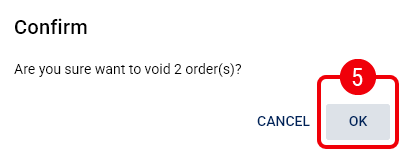
 | Click OK on the confirmation prompt to proceed. |
Once processed, a successful notification toast will display, and the Return Tracking Status for the eligible labels will revert to Unprocessed.