
As techSHIP evolves to support complex operations, managing user access across multiple warehouses requires centralized control. You can now manage global users to oversee your entire network of locations from a single dashboard.
This guide covers the conceptual hierarchy of organizations and locations, how to manage your organization-level users, and the critical rules regarding global roles.
TABLE OF CONTENTS
- The Organization and Location Hierarchy
- Organization Roles
- Managing Organization Users
- Critical Permissions Behavior
The Organization and Location Hierarchy
Previously, techSHIP managed physical warehouses independently as Portals. Now, the system operates under a centralized Organization umbrella. An Organization represents your global corporate entity, which contains multiple child Locations (formerly known as Portals). This structure allows you to apply administrative changes and manage users globally across all associated Locations simultaneously, streamlining your administrative workflow.
Organization Roles
To accommodate different levels of global access, techSHIP supports organization-level users. Currently, the primary role available for global management is the Organization Admin.
The Organization Admin role is designed to give you global administrative control over all child Locations. When you assign this role to a user, they instantly gain Location Admin permissions across every Location tied to your Organization.
Managing Organization Users
You can manage your global users by navigating to Settings, selecting Organizations, and opening the Users tab.
 | The initial Organization Admin role must be provisioned internally by Techdinamics. Once provisioned, this administrator can self-manage other global users following the steps below. | |
| | ||
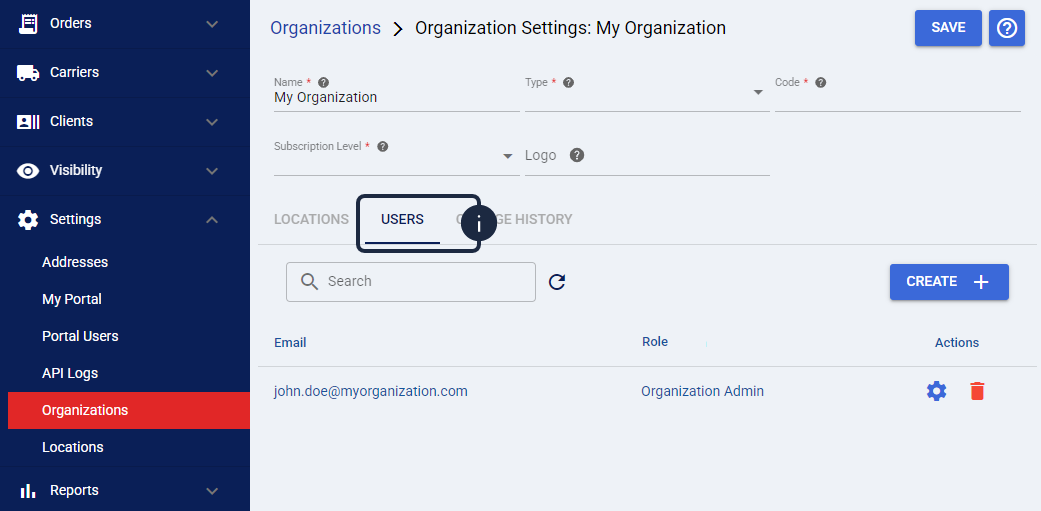
When creating or editing a user from this tab, you will configure the following core fields:
- Email: The email address that identifies the user within the Organization.
| The Email becomes read-only after the user is successfully created. | |
| | ||
- Role: Select the role for the user within the Organization.
Critical Permissions Behavior
Because techSHIP utilizes a dual structure (global and regional), managing global organization users affects local access directly. You must understand the following system behaviors to prevent accidental lockouts or permission loss.
Replacing Existing User Permissions
When you create an organization user, the system provisions them at both the global and regional levels.
 | Adding an existing location-level user overrides their current permissions with their new global access. For example, assigning the Organization Admin role will permanently replace their local permission, and this action cannot be undone. | |
| | ||
Deleting Organization Users
If a global user leaves your company or requires a role change, you can delete their profile from the Users tab.
| Deleting a global user completely removes their access across the entire Organization and all child Locations. The system does not restore any previous location-level permissions they might have held before becoming an organization user. | |
| | ||
Read-Only Visibility for Location Admins
While a global user is fully manageable from the Organizations settings, they also appear in the local Location Users grid at the Location level. However, standard Location Admin users cannot edit or delete global users like an Organization Admin. To local administrators, these global profiles are strictly read-only to prevent unauthorized modification of global access.
For a breakdown of all available local roles and permissions, see techSHIP User Permissions Structure [Information].