
Changing your organization's logo allows you to customize the techSHIP interface and ensure it accurately reflects your corporate branding.
This guide covers how to upload, replace, or revert your organization's logo.
TABLE OF CONTENTS
Understanding the Organization Logo
Customizing the visual identity of your organization improves the white-label experience for your team. When updated, this image replaces the default techSHIP logo located in the top-left corner of the header across the platform.
Uploaded images are automatically scaled to fit the system's specified dimensions. If you decide to remove a custom logo, the system will immediately revert to the default techSHIP branding.
 | Before modifying an organization's logo, you must ensure you have the correct administrative access. For details on the required permissions to perform this action, refer to techSHIP User Permissions Structure [Information]. | |
| | ||
| To ensure optimal display quality, the recommended aspect ratio for your image is 75:32 (or 2.34:1). The system accepts only .png and .svg file formats with a maximum file size of 1 MB. | |
| | ||
Change an Organization Logo
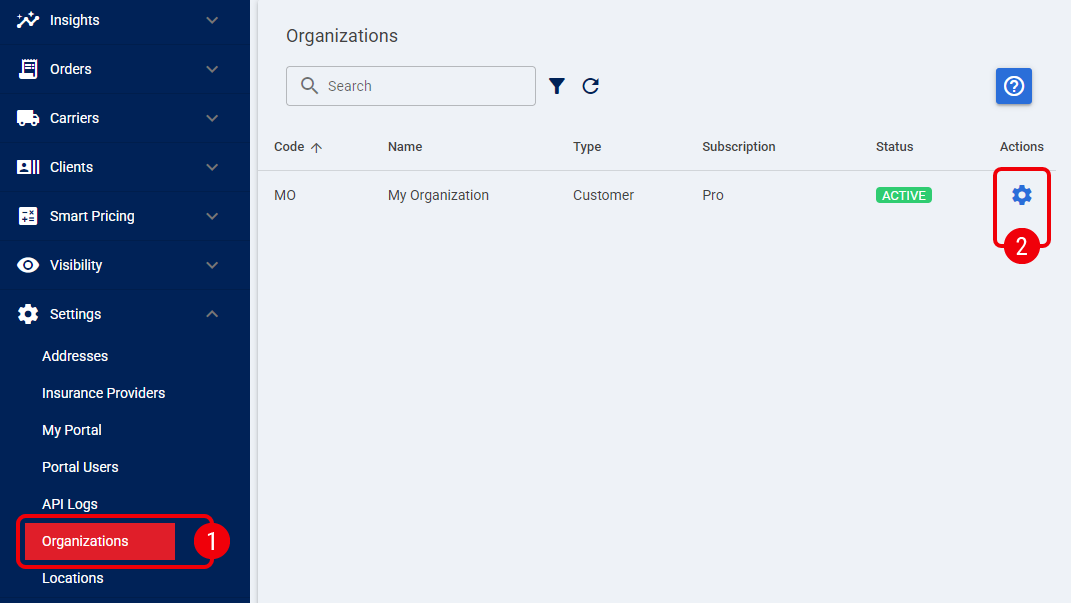
 | Navigate to Settings > Organizations using the main side menu. |
 | Locate the specific organization you want to update and click its Settings icon. |
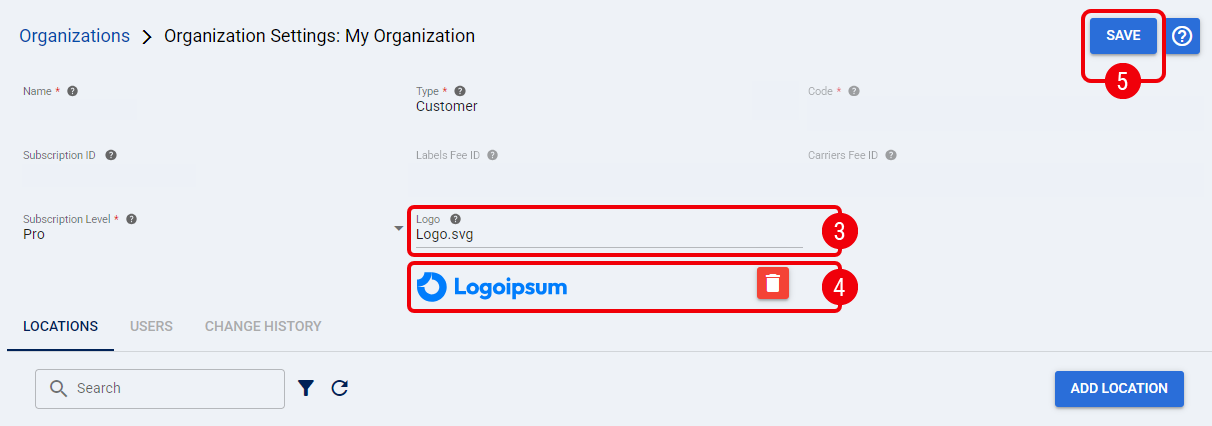
 | On the organization's edit page, click the Logo field to open the file selection prompt. |
 | Select your desired file from your computer to trigger the upload. This will automatically display a preview on the screen, so you can confirm it meets your branding expectations. |
 | Click Save to apply your changes. |
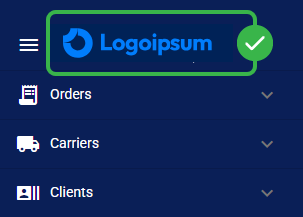
The new logo is now active and will immediately reflect in the header across your techSHIP environment.
You can return to this page at any time to update the image or revert to the default logo.