The techSHIP Reprint Policy safeguards your operations by preventing accidental duplicate document printing, saving you unnecessary postage costs and operational rework. By making the Print Status visible directly within your workflows, you can easily track document generation and seamlessly audit your order states.
This article explains how the Reprint Policy functions, the different configuration modes available, and how to track the Print Status of your orders.
TABLE OF CONTENTS
Print Status Visibility
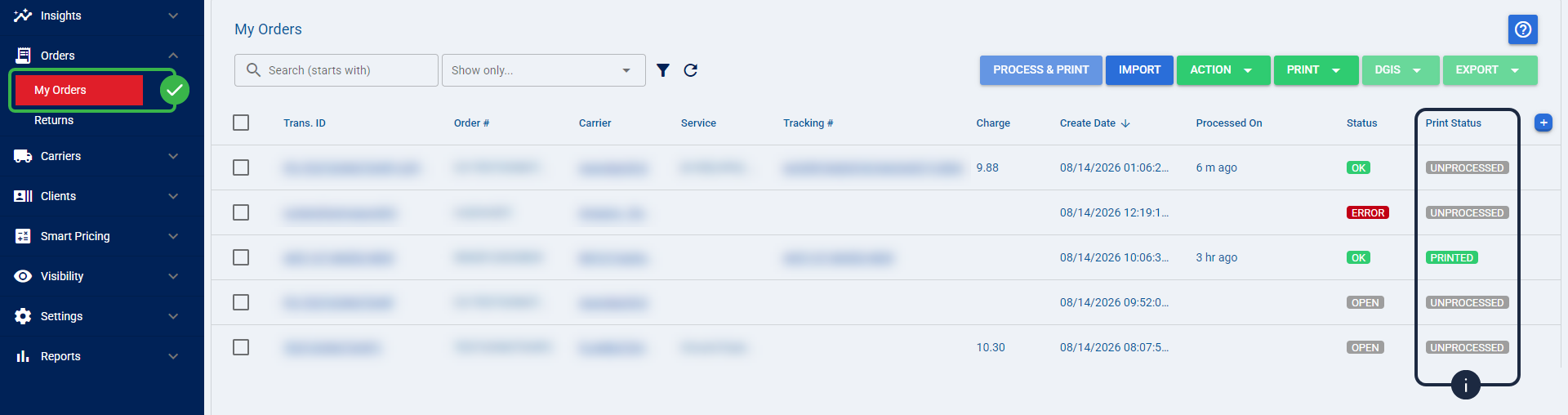
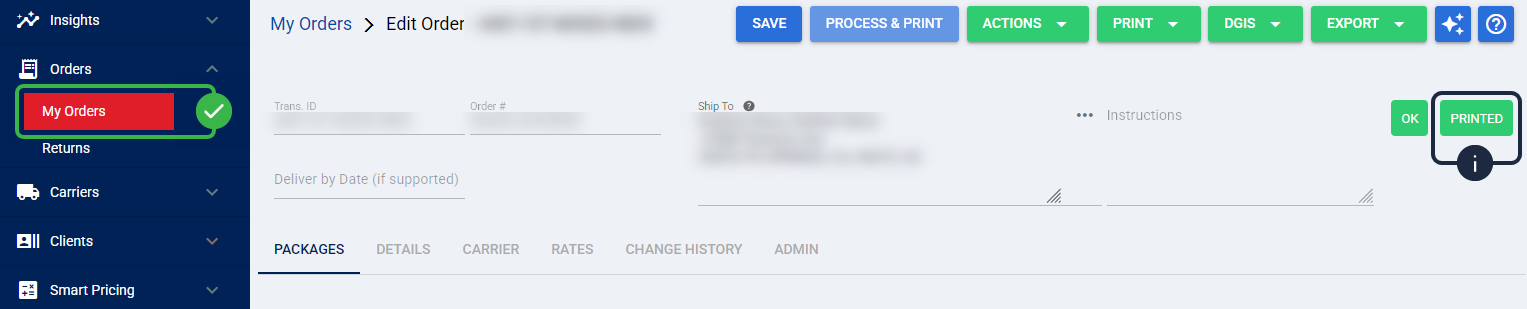
You can track the physical document generation of your orders through the Print Status indicator. This feature allows you to instantly see if an order has been successfully sent to the printer. The indicator is available in two locations:
- As a dedicated column in the My Orders grid.
- As a badge located inside the Order Details page, directly adjacent to the processing status.
The possible Print Status states are:
- Not Printed: Displayed for orders that have not yet generated any physical documents.
- Printing: Indicates that the print job is currently in progress.
- Printed: Confirms that the print action was successfully executed for the order.
The Reprint Policy Concept
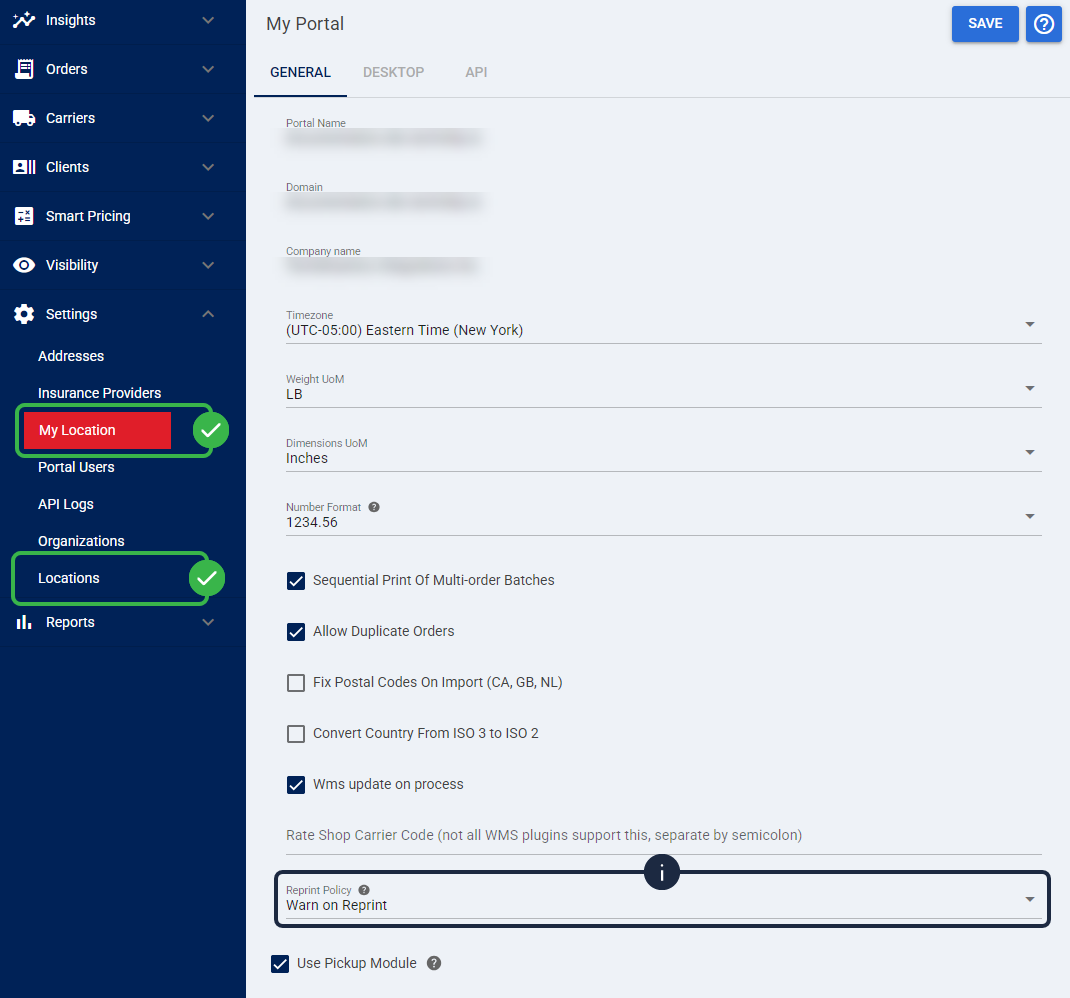
To prevent accidental duplicate printing of large batches, techSHIP implements a Reprint Policy available at the My Location or Location level. This policy actively evaluates the Print Status of your selected orders when you execute standard Print actions.
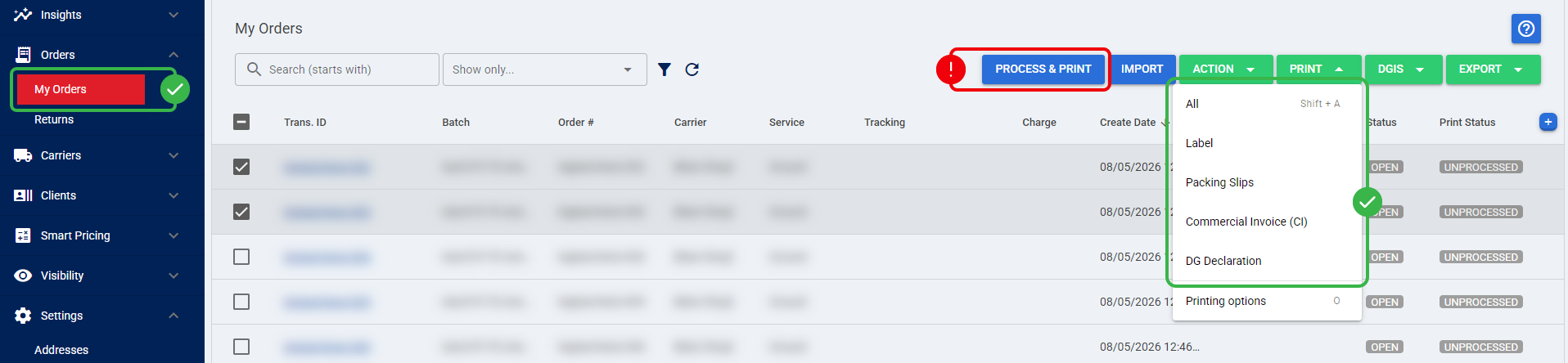
The policy applies when you select any of the following specific print operations:
- Print All
- Print Label
- Print Packing Slips
- Print Commercial Invoice
- Print DG Declaration
 | The Reprint Policy explicitly evaluates standard print actions. It does not apply to the Process & Print action, as this function regenerates the label entirely during processing. | |
| | ||
Reprint Policy Modes
You can configure the Reprint Policy to operate in one of three distinct modes, depending on your warehouse requirements:
- Warn on Reprint: This is the default protection mode. If you select a batch of orders and at least one order is already marked as Printed, the system triggers a confirmation modal. You must explicitly confirm the action to proceed with the reprint.
- Block Reprint: This mode strictly prevents the print action. If at least one selected order is marked as Printed, the system will completely block the action and display a Reprint Blocked message.
- No Restriction: This mode allows immediate printing without any warnings or blockers.
Bypassing Blocks with Permission Overrides
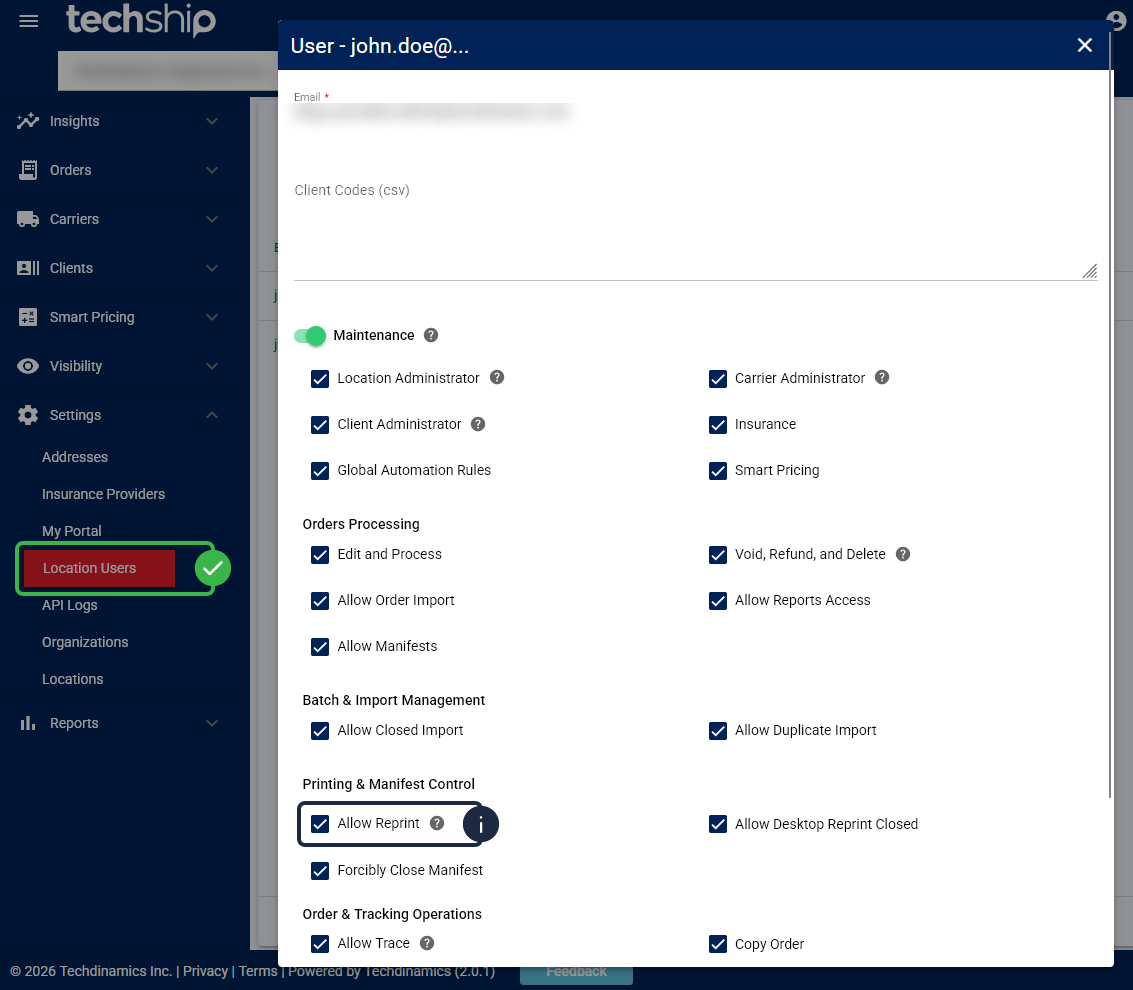
If your Location is configured to use the strict Block Reprint mode, you can still allow specific personnel to reprint documents by adjusting their user permissions. Users assigned the Allow Reprint permission will successfully bypass the strict block and proceed with the print job.
You can locate and assign this permission on the Location Users page.
| The Allow Reprint permission only affects locations using the Block Reprint mode. It does not alter the behavior of the Warn on Reprint or No Restriction modes. | |
| | ||