
Custom Lists in techSHIP let you maintain named, reusable sets of text values independently from the configurations that may reference them.
This article explains how Custom Lists are scoped, identified, maintained, and currently used within techSHIP.
Prefer listening? You can download the podcast-style audio attached to this article, which walks you through the key points.
 | AI-Assisted & Human-Reviewed: For general information only. Please double-check important details. | |
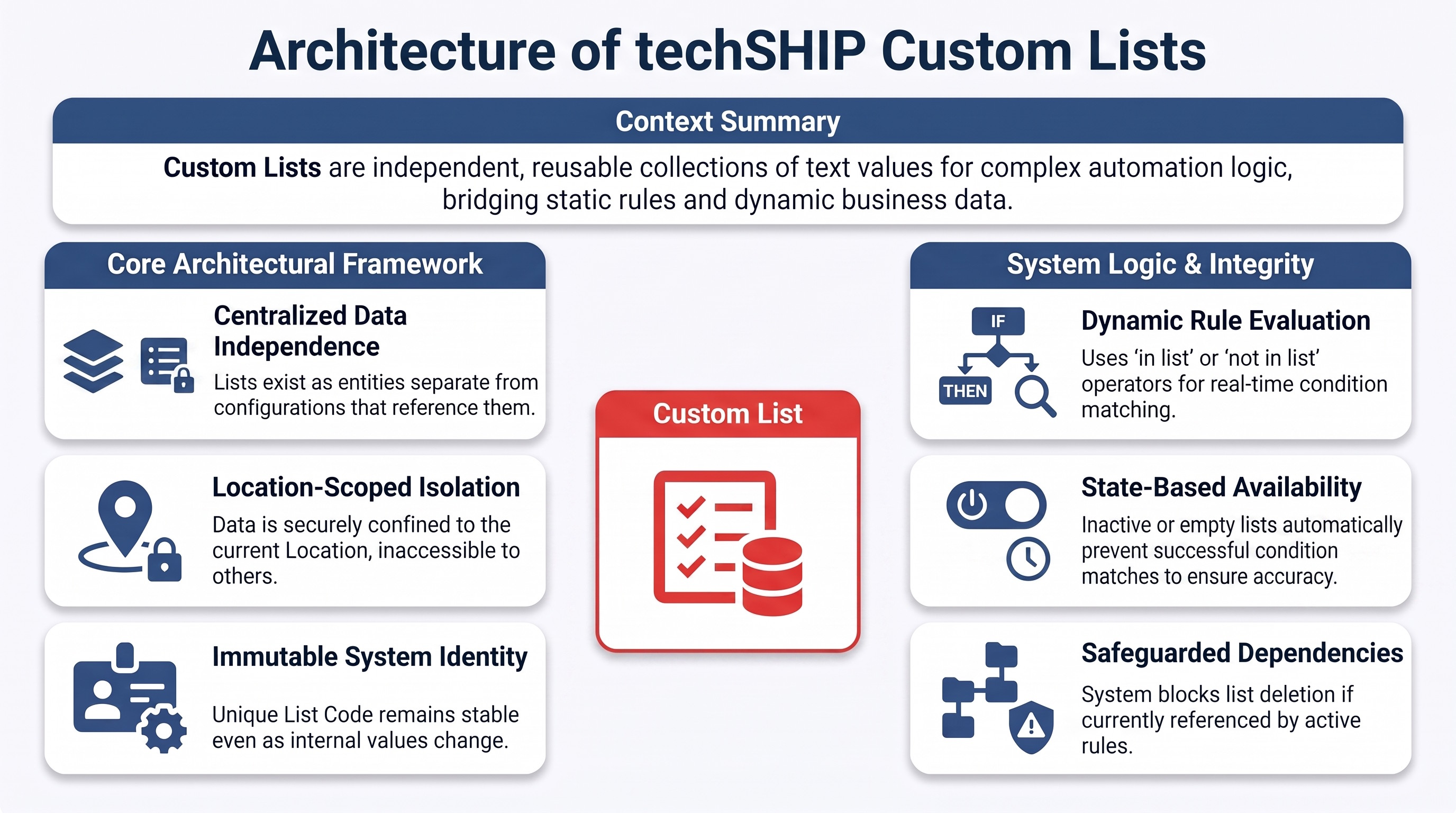
TABLE OF CONTENTS
- What Custom Lists Are
- Location Scope
- Permissions
- Using Custom Lists in Conditions
- List Identity and Updates
- Active Status and Availability
- Dependencies and Deletion
- Next Steps
What Custom Lists Are
A Custom List is a reusable collection of text values that you manage as its own entity within techSHIP.
Because Custom Lists store arbitrary text, they are not tied to one specific type of data or business scenario. For example, postal codes can be stored for carrier-serviceability logic, but postal codes are only one practical application of the feature.
Each Custom List is maintained separately from the configurations that reference it. This separation lets you update the list contents centrally while preserving the identity of the list itself.
Location Scope
Each Custom List belongs to your current Location rather than to an individual client. Within the same Location, you can reuse the list in supported configurations.
A Custom List created in one Location is not available from another Location. This isolation prevents configurations in another Location from selecting or evaluating that list.
Permissions
To access and manage Custom Lists, you must have the appropriate permissions assigned to your account. For information about the required access, refer to techSHIP User Permissions Structure [Information].
Using Custom Lists in Conditions
One current application of Custom Lists is to use them as reusable datasets in supported techSHIP conditions. Instead of maintaining many values directly within a condition, you can select a Custom List and evaluate a field against its contents.
Supported conditions can provide the in list and not in list operators. When you use one of these operators, you select the Custom List whose values you want the condition to evaluate.
To review the fields available for Order Management Rule conditions, refer to Order Management Rules (OMR) Available Conditions [Information].
| Custom Lists are generic datasets, so their values do not receive field-specific validation. For example, a list containing postal codes does not validate whether those values follow a particular postal-code format. | |
| | ||
List Identity and Updates
Each Custom List has a unique Code that identifies it. You define the Code when you create the list, and you cannot change it afterward.
When a supported configuration references a Custom List, it uses the list's stable Code. Because that identity remains unchanged, you can add, remove, import, or replace list values without recreating the list or changing its Code.
For current condition-based configurations, changing the contents of a referenced list causes subsequent evaluations to use the updated values without requiring you to rebuild the condition.
 | When you replace existing values, any supported configuration that references the list can be affected by the new dataset. Review the impact on those dependencies before replacing a shared list. | |
| | ||
Active Status and Availability
The Active setting determines whether a Custom List can participate in its current supported condition-based use. If you make the list inactive, conditions that reference it do not match.
An empty Custom List also produces no condition match because there are no available values to evaluate.
| If a referenced Custom List is inactive, empty, unavailable, removed, or belongs to another Location, the condition does not match. In particular, not in list does not become a successful match simply because the referenced list cannot be evaluated. | |
| | ||
Dependencies and Deletion
Before you delete a Custom List, techSHIP checks whether supported configurations still reference it. If dependencies exist, techSHIP blocks the deletion and identifies the affected references so you can resolve them first.
To remove a referenced Custom List, first update or remove the configurations that depend on it. After those dependencies are resolved, you can delete the list.
Next Steps
To create lists, update list details, or manage individual values, refer to Create and Manage Custom Lists [Step-by-Step Guide].
To add or replace values in bulk using supported files, or to download existing list values, refer to Import and Export Custom List Values [Step-by-Step Guide].
For one practical application using a Custom List with the Postal field to evaluate carrier serviceability, refer to Setting up Order Management Rules: Carrier Serviceability with Custom Lists [Guide].