
You use Markup Profiles to organize charge adjustments by Carrier, Service Group, Pricing Dimension bracket, and zone, rather than maintaining separate settings for every Service.
This guide explains how your configuration determines the applicable markup, how it interacts with Client (Billing) Accounts, and which configuration changes can affect processing.
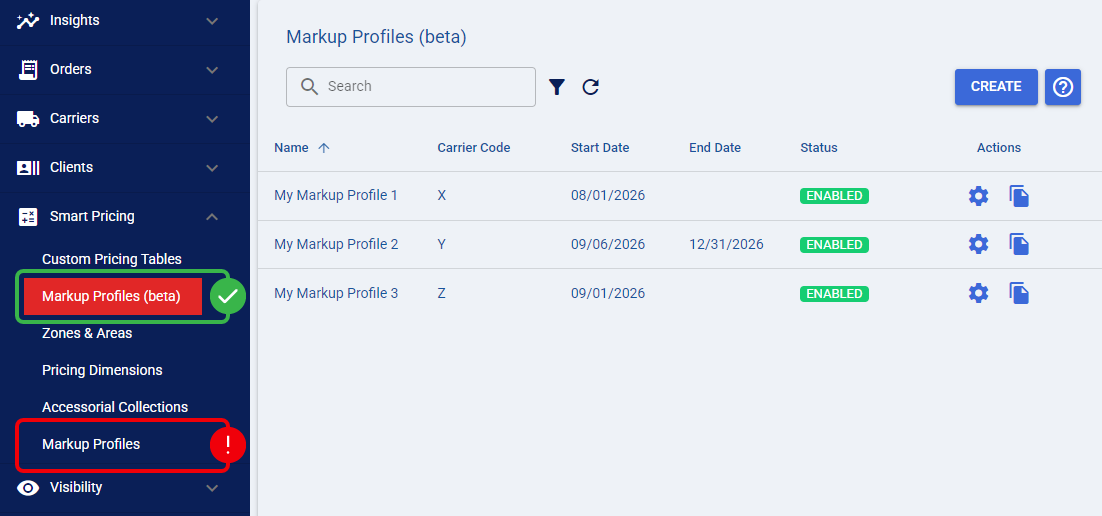
 | This guide covers the group-and-matrix engine currently labeled Markup Profiles (beta). You access it through Smart Pricing → Markup Profiles (beta), separately from the legacy Markup Profiles menu entry.
Your access depends on your Location’s enabled features, organization configuration, and permissions. Menu visibility and permission to modify configuration are separate checks. For permission requirements, refer to techSHIP User Permissions Structure [Information]. To learn about this feature availability, see techSHIP Specifications Sheet [Information]. Your existing legacy assignments remain unchanged until you explicitly select a different profile. | |
Prefer listening? You can download the podcast-style audio attached to this article, which walks you through the key points.
| AI-Assisted & Human-Reviewed: For general information only. Please double-check important details. | |
| You configure matrix rows through a Pricing Dimension. Weight is used to provide the examples in this guide. | |
TABLE OF CONTENTS
- How Your Configuration Fits Together
- How Your Client (Billing) Account Uses a Profile
- How Markups Are Calculated
- How Maintenance Changes Affect Your Configuration
- Reviewing Results and Understanding Diagnostic Limits
- Choose Your Next Task
How Your Configuration Fits Together
You organize service markup through Profile → Service Groups → Pricing-Dimension-by-Zone Matrix. You maintain Surcharges alongside Service Groups within the same profile, not beneath an individual group.
CONFIGURATION LEVEL | WHAT YOU DEFINE |
Markup Profile | Your Carrier, profile identity and description, Start Date, End Date, and Enabled or Disabled state. |
Service Group | Your Service membership, Pricing Dimension, Zone & Area, Markup Type, group-level Minimum Markup ($), and calculation flags. |
Matrix Cell | Your Markup %, Markup $, and cell-specific Minimum Markup ($) for one Pricing Dimension bracket and zone. |
Surcharge | Your surcharge identification, Surcharge Type, Markup Type, percentage, fixed amount, minimum, and optional effective dates. |
You select a Carrier, not an individual Baseline Account record. The Carrier selection remains fixed after profile creation, and you can reuse the profile across eligible Client (Billing) Accounts.
You define effective dates at the profile level, not separately for each Service Group. Dates displayed in the group’s markup-values header provide profile context; they do not introduce independent group schedules.
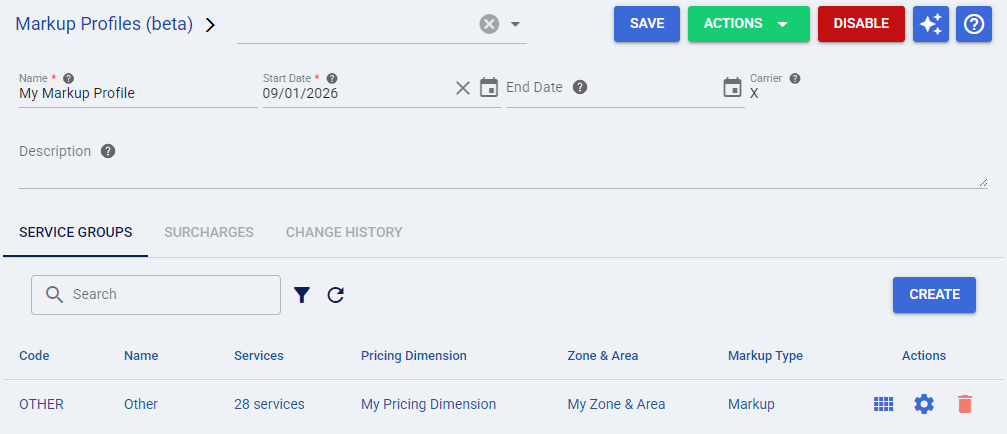
Service Groups and Other
You group Services that need the same calculation settings and matrix structure. Within one profile, you can assign a Service to only one non-default Service Group.
When you create a profile, you also create the reserved Other group, whose code is OTHER. Its membership is derived from the Carrier catalogue: Services not assigned to another group belong to Other. Assigning a Service to an explicit group removes it from Other; removing that assignment returns it to Other.
You cannot rename Other, delete it, or edit its Service membership directly. You can maintain its permitted calculation settings, including Pricing Dimension, Zone & Area, Markup Type, minimum, and calculation flags.
 | Other is a Service-selection fallback, not a coverage guarantee. After a Service resolves to a group, that group still needs a matching Pricing Dimension bracket and zone. A missing bracket, unresolved zone, or empty cell does not cause another attempt against Other. | |
Shared Pricing Dimensions and Zones & Areas
You use the same Pricing Dimensions and Zones & Areas resources that support Smart Pricing. Your group references these resources directly; you do not need a Custom Pricing Table to create its markup matrix.
Your Pricing Dimension supplies the matrix rows, while Zone & Area supplies the geographic configuration used to resolve its columns. The selections made during profile creation initialize Other; they do not impose one unchangeable configuration on every subsequent group.
You use Custom Pricing Tables to define rates, and Markup Profiles to calculate adjustments to applicable charges. Sharing dimensions and zones does not make their calculation rules interchangeable. For the broader pricing model, refer to Mastering Smart Pricing in techSHIP [Guide].
How Your Client (Billing) Account Uses a Profile
You select the applicable Markup Profile in your Client (Billing) Account, under Rates & Markups → Markup. You select one profile from one generation: the account does not combine legacy and group-and-matrix profiles, and it does not automatically fall back from one generation to the other.
You need to distinguish three independent conditions:
CONDITION | WHAT IT MEANS |
Enabled | Your profile is permitted to participate in processing. This does not assign it to an account. |
Assigned | Your Client (Billing) Account selects that profile as its configured source. |
Within Its Effective Dates | Your profile’s date window permits its application for the relevant rating or processing date. |
You do not change an existing assignment by creating or enabling another profile. Switching generations is manual, and switching back requires you to reselect the previous profile; the previous selection is not remembered.
Your Markup Profile picker lists eligible legacy profiles first and profiles from the group-and-matrix engine second, alphabetically within each group. You see a divider only when both groups contain results. Options display profile names only, so the closed field does not identify the selected generation.
Rate Mode and Accessorial Mode
You use Rate Mode and Accessorial Mode to determine which parts of the profile participate in the calculation.
When you select Profile as the Rate Mode, Markup Profile is the only available Accessorial Mode.
RATE MODE | ACCESSORIAL MODE | HOW YOUR CONFIGURATION IS USED |
Profile | Markup Profile | Your profile supplies service markup and surcharge markup. |
Smart Pricing Rates | Markup Profile | Custom Pricing Table supplies the service rates; your profile supplies surcharge markup only. |
In the surcharge-only combination, the service-markup matrix is not consulted, and service markup from the profile is zero. Do not troubleshoot a surcharge-only calculation by assuming that a Pricing Dimension bracket or matrix value was selected.
You must also distinguish these account settings from the matrix’s Markup Mode selector. Rate Mode determines the account’s pricing source; Markup Mode determines which matrix measure you view or edit.
How the Service Markup Is Resolved
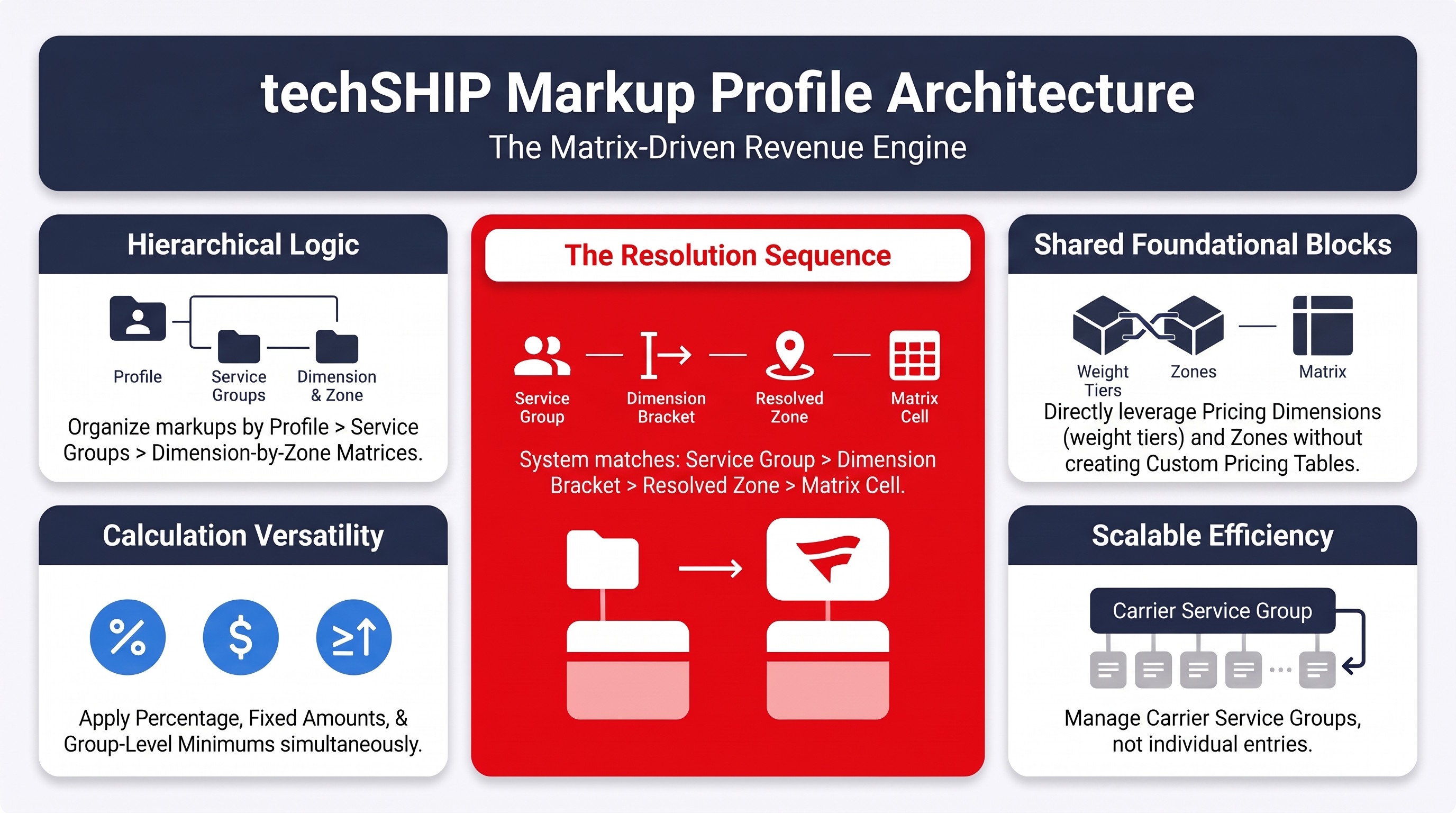
When your selected account configuration requires service markup, the engine follows this sequence:
Profile and Effective Dates → Service Group → Pricing Dimension Value → Bracket → Resolved Origin and Destination → Zone → Matrix Cell → Calculation
You receive the result associated with the first applicable stopping condition; the engine does not bypass an earlier failure to try a later step.
Profile and Effective Dates
Your assigned profile must exist, be Enabled, and belong to your current organization. Its Start Date and End Date are inclusive and evaluated as dates in the Location’s time zone. A blank End Date leaves the period open-ended.
For rating, you use the current date; for processing, you use the order’s processed date. Outside the profile’s effective window, you receive no profile markup, rather than a processing error.
Pricing Dimension Matching
You match the value evaluated for the group’s Pricing Dimension to a configured bracket using Minimum < Value ≤ Maximum.
For Weight, you match the bracket using the total actual weight across all shipments in the order, normalized to the Pricing Dimension’s units. You do not select a separate bracket for each shipment, and you do not apply dimensional weight or a dimensional factor.
For example, with a Weight dimension, shipments weighing 8 LB and 7 LB produce a total of 15 LB, so you select the bracket covering 15 LB.
| If no Pricing Dimension bracket covers the evaluated value, your service-markup calculation fails. This differs from a matched but completely empty matrix cell, which contributes no markup. | |
For bracket setup, boundary rules, and continuous coverage, refer to How to Configure Pricing Dimensions in techSHIP [Step-by-Step Guide].
Resolved Addresses and Zone Selection
You calculate the zone from the resolved Ship From and Ship To addresses, not simply the raw address fields on the order.
Your origin-resolution order is:
Order Ship From → Client Sender Override → Client (Billing) Account Induction Point → Carrier Account Address
You use the same resolved sender-address source that Smart Pricing consumes. An absent order-level Ship From block therefore does not automatically mean the origin is unavailable.
For User defined regions, you resolve the origin and destination Rate Areas using the configured Postal, Country, or Province basis, then find the zone for that pair. Postal matching prioritizes Exact → Prefix → Range; among competing prefixes, the longest applicable prefix wins. Postal-code whitespace is removed before matching.
For System regions, you use preloaded Carrier zone mappings rather than defining those mappings yourself. USPS is a supported example of a System configuration.
| USPS-specific example: With USPS System zones, you check five-digit exception ranges before falling back to three-digit-prefix mappings. Postal validation applies to eligible US/CA addresses carrying postal codes, and only after the profile, group, and bracket have resolved. An invalid postal code or unavailable validator fails that calculation rather than allowing a guessed zone. Do not assume these USPS-specific lookup and validation rules apply to every System configuration. | |
To configure the shared geographic resources, refer to How to Configure Zones & Areas in techSHIP [Step-by-Step Guide].
Matched Matrix Cell
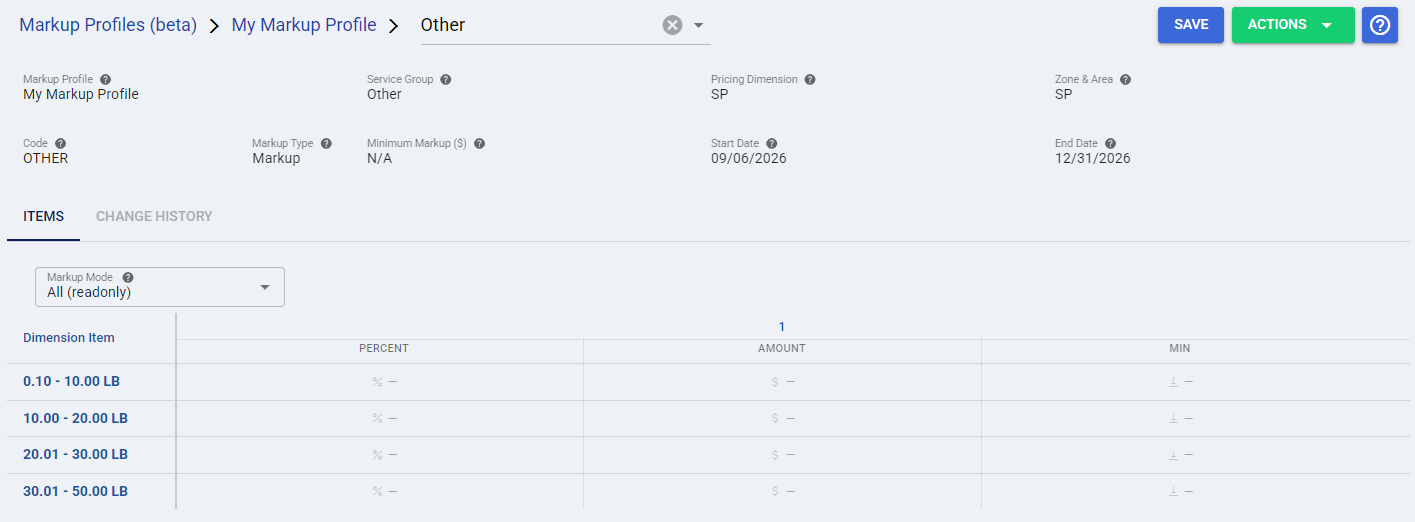
After resolving the bracket and zone, you use the cell belonging to that Service Group, Dimension Item, and zone.
You can view its three measures together through All (readonly) or edit one measure through Markup %, Markup $, or Minimum Markup ($). These modes expose the same stored configuration; selecting one mode does not deactivate the other measures.
How Markups Are Calculated
Markup Type
You select Markup Type on the Service Group. It determines how the applicable charges and matched cell values are used.
MARKUP TYPE | CALCULATION |
Markup | You calculate the negotiated charge multiplied by the percentage, divided by 100, then add the fixed amount and apply the applicable minimum. |
Published rate discount | You calculate the published charge minus the negotiated charge, percentage discount portion, and fixed amount, then apply the applicable minimum. |
Published base rate discount | You use the equivalent published-rate-discount calculation on the base charges. |
For the default Markup type:
Calculated Markup = Negotiated Charge × Markup % ÷ 100 + Markup $
Your applicable Minimum Markup is a floor on that adjustment—not a minimum final shipping charge. The published-rate discount types also require their corresponding published-rate information.
Tax Inclusion and Missing Carrier Charges
With Include Tax Into Fee Markup Calculation selected, your default Markup calculation uses the negotiated charge including tax. Without it, you use the net charge before tax. This setting changes the calculation base; it does not change which Pricing Dimension bracket or zone matches.
You also maintain Force Markup When Missing Carrier Charge on the Service Group. Verify the missing-charge scenario for your Carrier before relying on this setting; do not treat it as a substitute for complete profile, bracket, and zone configuration.
Cell Minimum vs. Group Minimum
For a populated cell, you apply its Minimum Markup ($) when defined. Otherwise, you use the Service Group minimum.
The cell minimum replaces the group minimum for that calculation; you do not automatically choose whichever minimum is larger. You also do not inherit a percentage or fixed amount from the group—those values come from the matched cell.
CONFIGURATION | INTERPRETATION |
Undefined Percentage or Fixed Amount | You use zero for that component of a populated cell. |
Undefined Cell Minimum | You use the group minimum when the cell otherwise contains a value. |
Explicit Zero | You have defined a numeric value. In particular, a cell minimum of 0 overrides the group minimum. |
Completely Empty Cell | You receive no markup from that matrix resolution, and the group minimum is not charged. |
You see undefined measures as — or Not defined. Clearing every measure is different from entering zero: an entirely cleared cell returns without applying the group minimum.
You cannot enter negative values in the service-markup matrix, and its percentage is limited to 0–100.
Surcharge Markups
You maintain surcharge values separately from the service matrix. Each Surcharge has its own calculation values, minimum, and optional dates.
For an applicable surcharge, you calculate its base × percentage ÷ 100 + fixed amount, apply its own minimum, and invert the adjustment’s sign for published-rate-discount types. Applicable surcharge adjustments are added to service markup unless your account configuration uses the profile for surcharges only.
You do not evaluate legacy Order Management conditions on these surcharge records. Their date windows control conditional applicability, subject to the account’s selected mode and the availability of the required charge information.
You must distinguish a zero or absent Carrier surcharge base, which the documented Carrier-surcharge handling skips, from an unsupported surcharge base, which can fail processing. Do not assume every missing-charge scenario has the same outcome.
Calculation Examples
You can use these generic examples to distinguish calculation values from coverage failures. Amounts use the same unspecified monetary unit, with taxes and surcharges excluded.
EXAMPLE | CONFIGURATION | RESULT |
Percentage Plus Fixed Amount | Your negotiated charge is 20, percentage is 10%, fixed amount is 1, and no minimum is configured. | Your markup is 20 × 10 ÷ 100 + 1 = 3. |
Group Minimum | You use the same calculation, leave the cell minimum undefined, and set the group minimum to 5. | Your calculated 3 is raised to 5. |
Cell Minimum Takes Precedence | You use the same calculation, set the cell minimum to 2, and retain the group minimum of 5. | Your markup remains 3: the cell minimum replaces the group minimum. |
Explicit Zero | You enter 0%, a fixed amount of 0, and a cell minimum of 0, with a group minimum of 5. | Your markup is 0; the defined cell minimum prevents the group minimum from taking over. |
Completely Empty Cell | You clear percentage, fixed amount, and cell minimum, while retaining the group minimum of 5. | You receive no markup from the matrix resolution; the group minimum does not apply. |
Missing Dimension Coverage | Your group has no bracket covering the value evaluated for its Pricing Dimension. | You receive a processing error, not a zero-markup result. |
No Markup vs. Processing Errors
You must distinguish a valid decision not to apply markup from a configuration failure. When a service-markup calculation is required, the following conditions produce different outcomes.
CONDITION | OUTCOME |
Your profile is outside its effective dates. | No profile markup; processing continues. |
No group claims the Service and no Other/default group exists. | No profile markup. Normal profile creation provides Other; this is an exceptional configuration state. |
Your resolved matrix cell is unset or completely cleared. | No markup from that resolution, with no group minimum. |
Your assigned profile is missing, removed, Disabled, or outside the current organization. | Processing error. |
Multiple groups claim the same Service, or multiple default groups exist. | Processing error due to conflicting configuration. |
Your Pricing Dimension is missing, has no brackets, or does not cover the evaluated value. | Processing error. |
No zone covers the resolved origin and destination. | Processing error. |
Required postal validation fails or its validator is unavailable for USPS System zones. | Processing error, when that validation step is reached. |
A required negotiated or published rate is unavailable, or a required surcharge base is unsupported. | Processing error. |
| Disabling an assigned profile is not a harmless pause. When your Client (Billing) Account still points to that profile, affected orders fail rather than silently continuing without markup. Review and update affected assignments before disabling a profile you no longer intend to use. | |
You apply the markup before label printing continues. A markup failure marks the order as failing and initiates void handling; you do not receive automatic fallback to a legacy profile.
How Maintenance Changes Affect Your Configuration
Creating and Copying Profiles
You create an ordinary profile in the Enabled state, but it has no effect on an account until you assign it. A Copy starts Disabled, regardless of the source’s state.
Your copy receives separate record identities and retains the source’s Carrier, description, custom fields, active groups, Service assignments, associated matrix values, and active surcharges. The source remains unchanged. You retain or override the source dates, and duplicate profile names are permitted.
You may not see the copy in a list filtered to Enabled profiles. Review the copied configuration and dates before enabling and assigning it. Copying is not a legacy-profile conversion operation.
Changing Matrix Structure or Deleting Groups
When you change a group’s Pricing Dimension or Zone & Area, saving discards that group’s existing matrix values. The editor displays an inline warning; you should not expect a separate confirmation dialog to protect that save.
When you delete a regular Service Group, you also delete its matrix and return its Services to Other. You do not preserve the deleted group’s values as fallback values, and the operation has no undo.
| Before changing matrix structure or deleting a group, preserve the relevant configuration and assess the effect on every assigned Client (Billing) Account. Returning Services to Other changes which settings they resolve against; it does not preserve their previous markup. | |
Manual Saves vs. Imports
You have different update behavior depending on how you maintain the configuration.
OPERATION | EFFECT |
Manual Matrix Save | You submit only changed cells. The complete submitted batch is validated before writing; one invalid change prevents all submitted changes from being saved. |
Service Group Import | You update or create groups by Code. Groups omitted from the file remain unless you explicitly select them for removal during validation. |
Service Membership Import | You replace the imported group’s membership using its Services cell. An empty Services cell removes that group’s existing assignments. |
Surcharge Import | You match records by Surcharge Type, Carrier Surcharge Code, and Custom Name. Without a Surcharges sheet, existing surcharges remain unchanged. |
Markup Items Import | You replace values for the group’s current bracket-and-zone structure. Blank values clear the corresponding measure; this is not a changed-cells-only update. |
You validate matrix imports before saving. Unknown zones or brackets are skipped with warnings, while structurally invalid files and files with no matching current zones or brackets are rejected. A successful validation does not mean the import is non-destructive.
Export Scope
Your profile-level export contains Service Groups and Surcharges and excludes Other. Your matrix export contains the selected group’s Markup Items.
You therefore cannot treat a profile-level export as a complete backup of every matrix. Preserve the relevant matrix exports separately, and do not treat an export or Change History as an automatic version-restoration mechanism.
Reviewing Results and Understanding Diagnostic Limits
Configuration Cache
You may wait up to 30 seconds for saved configuration changes to affect rating because profile data is cached. This includes changes to groups, brackets, matrix values, surcharges, and the disabled state.
You should distinguish this rating delay from a screen refresh. Reloading a page can update what you see without proving that a subsequent calculation has already consumed the latest cached configuration.
Recorded Calculations vs. Historical Configuration
Your processed order retains the Markup calculation details, including the bases, percentage and fixed components, applicable minimums, and totals.
However, you do not retain the selected profile, Service Group, bracket, or zone identities in that calculation record. You cannot treat the recorded arithmetic as a complete snapshot of the configuration that produced it.
You can review configuration changes through Change History at the profile and group markup-values levels. For the log-review procedure, refer to How to Review Change History Logs for Supported Entities [Step-by-Step Guide].
AI-Assisted Review
You can use the AI Assistant to review configuration, request supported changes, and validate hypothetical markup scenarios. A hypothetical calculation uses the available configuration; it is not proof of what an earlier order used.
When you review processed-order explanations, a reconstructed Service Group, bracket, or zone comes from the current configuration and can differ from the original processing context. Keep reconstructed results separate from recorded calculation facts.
For assistant availability, interaction, and conversation handling, refer to techSHIP AI Assistant: Overview & Availability [Information].
Choose Your Next Task
You can use the following operational guides to configure the resources described above.
YOUR TASK | ARTICLE |
Create and Maintain Profiles | |
Enter or Clear Matrix Values | |
Assign a Profile | |
Maintain Configuration Through Files | |
Prepare Pricing Dimension Brackets | |
Prepare Geographic Configuration |