
![Article 1: DHL Express (REST) Onboarding Requirements and Configuration Guides [Information]](https://s3.amazonaws.com/cdn.freshdesk.com/data/helpdesk/attachments/production/96804813/original/7GJKyJXA3AM8E5itsPpDRjtqBPX6owOtKQ.png?1779474489) | ![Article 2: Reference Data: DHL Express (REST) Baseline Account Fields [Guide]](https://s3.amazonaws.com/cdn.freshdesk.com/data/helpdesk/attachments/production/96805389/original/PESWYE3uLdtYfrTR6D8pmzemRjxuhc873g.png?1779476661) | ![Article 3: Reference Data: DHL Express (REST) Client (Billing) Account Fields [Guide]](https://s3.amazonaws.com/cdn.freshdesk.com/data/helpdesk/attachments/production/96804742/original/bHFYZzIg1p3n6eidaRLAM0zP1uVKzHY4sw.png?1779473999) |
| Onboarding and Configuration | Baseline Account | (Billing) Account |
 You are here You are here |
This reference lists the carrier-specific DHL Express (REST) Baseline Account fields used in techSHIP configuration.
Use it together with the linked Baseline Account setup steps: the setup guide covers the shared configuration flow, while this article defines the confirmed field values, field behavior, and carrier-specific configuration details.
 |
For a complete overview of supported carriers and related setup guides, refer to techSHIP supported Carriers - Master List [Guides List].
|
 | Review DHL Express (REST) Onboarding Requirements and Configuration Guides [Information] before configuring the Baseline Account so required credentials and account settings are confirmed. |
TABLE OF CONTENTS
Adding a Baseline Account
Follow the UI Navigation steps in How to Add a Carrier Baseline Account [Step-by-Step guide], using the carrier-specific values provided in this guide.
Go to  | |
 |  |
| Essential Configuration | Carrier-Specific This article |
Carrier-Specific Instructions
| Return to | |
 |  |
| Essential Configuration | Carrier-Specific |
Carrier Tab
The Carrier tab contains the Baseline Account fields used to identify the carrier connection and define confirmed carrier-specific behavior. Highlighted fields indicate mandatory and optional configuration groups.
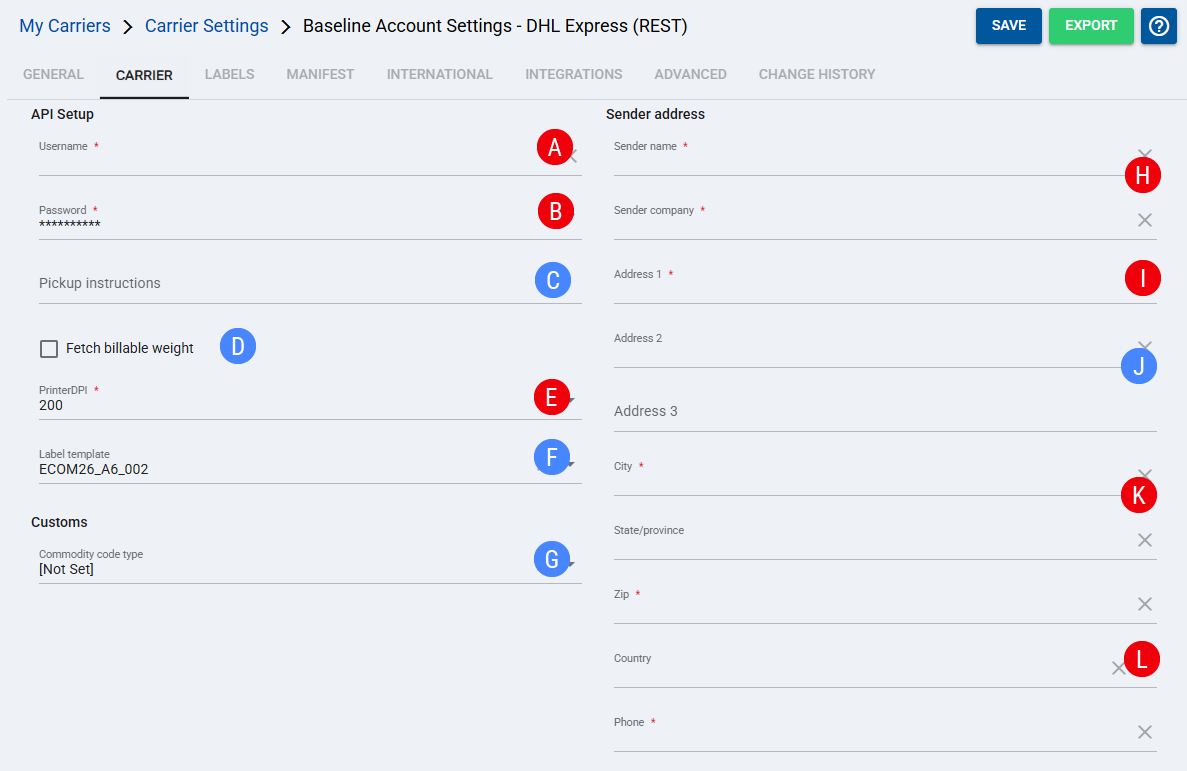
 | Username: Enter the DHL Express (REST) username. |
 | Password: Enter the DHL Express (REST) password. |
 | Pickup instructions: Enter pickup instructions for the carrier. |
 | Fetch billable weight: Check this option if the account should fetch the billable weight from DHL Express (REST). |
 | PrinterDPI: Indicates the Dots-Per-Inch used to determine the label print quality. |
 | Label template: Select the label template to use for DHL Express (REST) labels.
|
 | Commodity code type: Select whether the DHL Express (REST) request should send both commodity code types or only one code type for the commercial invoice. Leave [Not Set] to keep the default behavior and send both code types. Select Outbound only or Inbound only only when the account requires the commercial invoice to show a single commodity code type.
|
 | Sender name: Enter the sender name. Sender company: Enter the sender company. |
 | Address 1: Enter the primary sender address. |
 | Address 2: Enter the second sender address line, if applicable. Address 3: Enter the third sender address line, if applicable. |
 | City: Enter the sender city. State/province: Enter the sender state or province, if applicable. |
 | Zip: Enter the sender postal or ZIP code. Country: Select the sender country. Phone: Enter the sender phone number. |
Labels Tab
Set Mode to the confirmed label format supported for this carrier.
| Click Save before continuing so the configured settings are applied. |
Finalizing the Setup
Once the Baseline Account has been created, validated, and saved, continue with Reference Data: DHL Express (REST) Client (Billing) Account Fields [Guide].
| Go to | ||
![Article 1: DHL Express (REST) Onboarding Requirements and Configuration Guides [Information]](https://s3.amazonaws.com/cdn.freshdesk.com/data/helpdesk/attachments/production/96804995/original/8TBA5Gx5zMbNVuxpBfz-CdrCvI4APxv9oQ.png?1779475304) | ![Article 2: Reference Data: DHL Express (REST) Baseline Account Fields [Guide]](https://s3.amazonaws.com/cdn.freshdesk.com/data/helpdesk/attachments/production/96805142/original/-hCPa73Oa_qPHu9q9vIfK7GGTavTCHKWGA.png?1779475839) | ![Article 3: Reference Data: DHL Express (REST) Client (Billing) Account Fields [Guide]](https://s3.amazonaws.com/cdn.freshdesk.com/data/helpdesk/attachments/production/96805392/original/fyeDiUtUuUfVRqUZR2oaGfPZOvJQgQ0sOg.png?1779476668) |
| Onboarding and Configuration | Baseline Account | (Billing) Account |