
This guide provides step-by-step instructions for activating your Techdinamics Support account. You will learn how to locate your activation email, use your temporary password, and set your permanent password. These steps apply whether you activate your account before or after the new Support Portal launches..
We recommend completing the activation process as soon as you receive the email so your account is ready for the transition. Activating your account does not provide early access to the new Support Portal. Portal access will become available on the official go-live date.
 | First, check whether you can sign in at [HERE]. If you can sign in successfully, your account is already active and no further activation is required. | |
TABLE OF CONTENTS
- Find your temporary password
- Enter your email address
- Sign in with the temporary password
- Create your permanent password and complete your profile
- Account Activation Complete — No Further Action Required
| Before you begin
| |
Find your temporary password
Open the temporary-password email. It contains the username assigned to your account and a case-sensitive temporary password.
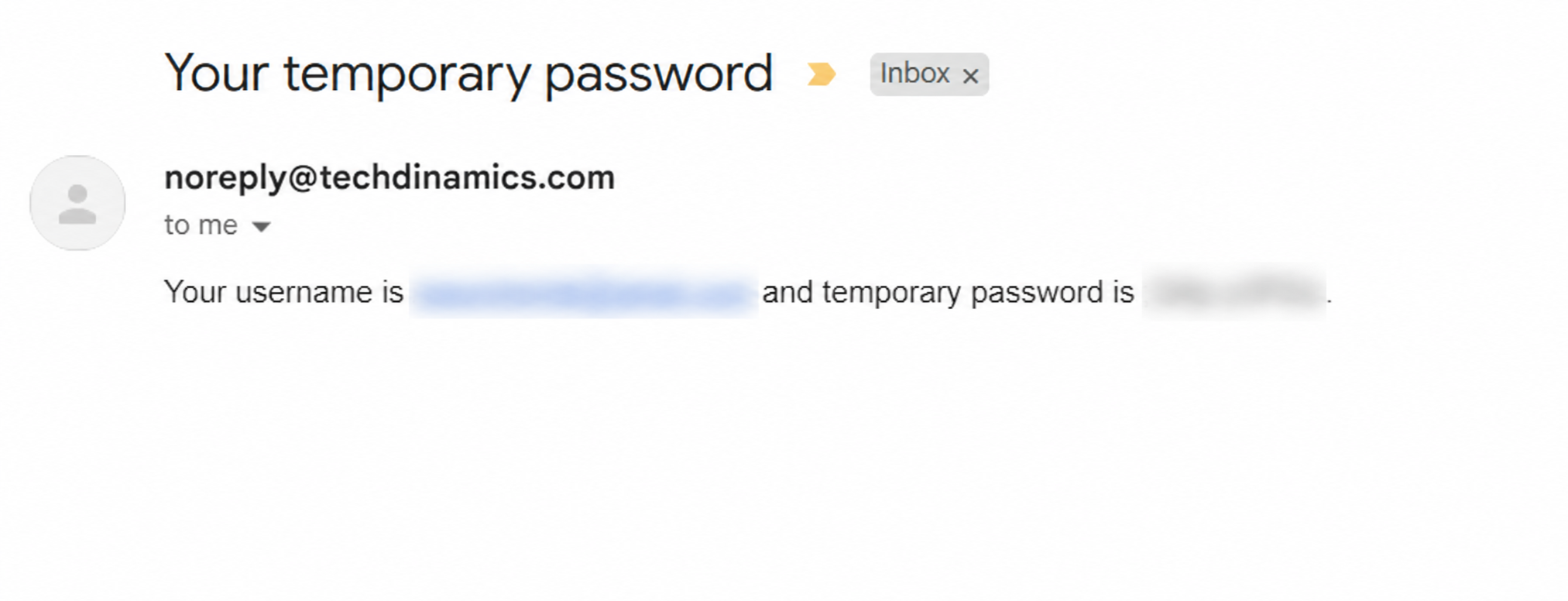
| Important: Copy only the temporary password. Do not include the period that ends the sentence, and do not copy any leading or trailing spaces. The password in the image below has been intentionally hidden. | |
Enter your email address
Go to the following URL https://customerportal.techdinamics.io enter the same email address shown in the temporary-password email, and select Next.
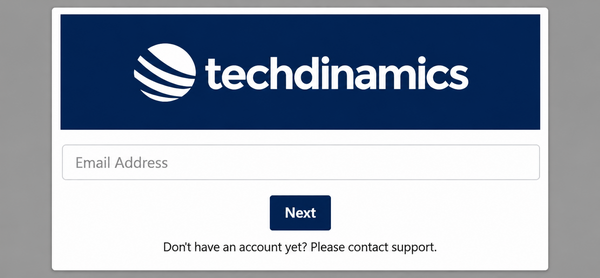
 | Heads up: The URL above is only for activating your account. Once the new Support Portal goes live, you’ll access it at support.techdinamics.com, the same address you use today. | |
Sign in with the temporary password
Enter the temporary password exactly as it appears in the email, then select Sign in.
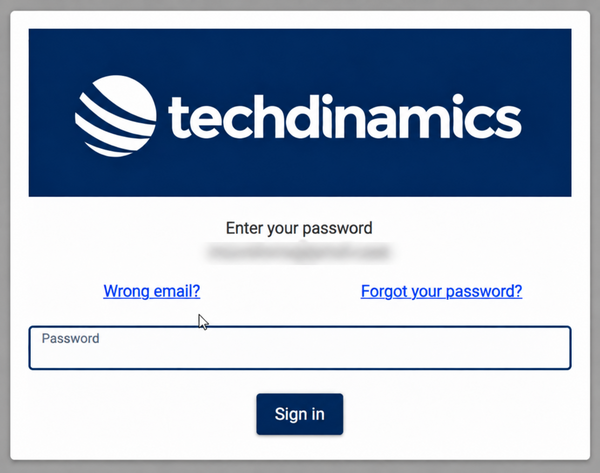
| Use Wrong email if the displayed address is not correct. | |
Create your permanent password and complete your profile
Enter and confirm a new password, then enter your given name and family name. Select Update to save the information.
Your new password must contain all of the following:
- At least 12 characters
- At least one uppercase letter
- At least one lowercase letter
- At least one number
- At least one special character
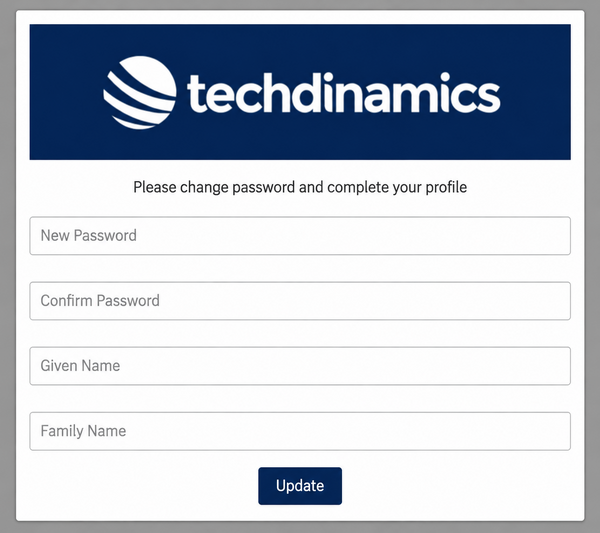
| If the message Error while updating profile: Invalid session for the user, session is expired appears, the activation session is no longer valid. Close the portal tab, reopen the portal link, and sign in again with your email address and temporary password. Then complete the profile promptly. | |
Account Activation Complete — No Further Action Required
Once you have set your permanent password, and successfully signed in, your account activation is complete. No further action is required, and you can close this page. Your account is ready for launch.
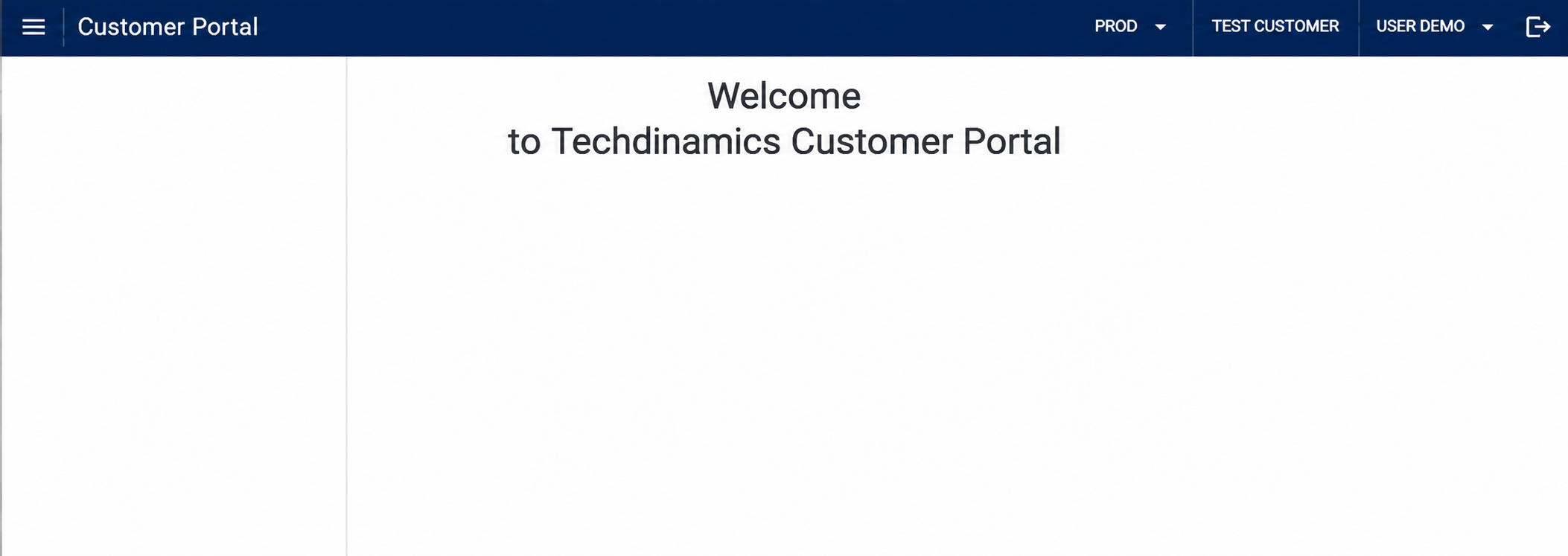
This sign-in completes your account activation only. Access to the new Support Portal will become available on the official go-live date, which we will communicate separately.
On that date, simply visit https://support.techdinamics.com, the same URL you use today, and sign in using your email address and the permanent password you created during activation. You will not need to activate your account again.
Until then, continue using the current support channels as usual.
For detailed information about the new portal’s features and how to create, track, and manage support requests after launch, please refer to the Techdinamics Support Portal – Customer User Guide.
| Note: Keep your permanent password safe. You will use it to sign in when the new Support Portal launches. | |